
Booking and sales
Manual bookings and confirmation
How a time a lead asks for becomes a request awaiting your confirmation when no calendar can confirm it, and how to confirm, decline or record what happened
2 min readUpdated 27 September 2026
ClientTurn never tells a lead a meeting is booked unless something has confirmed it. If you do not use a connected calendar, or the calendar cannot confirm a time, you are the confirmation.
Choose manual booking
- Step 1: Open Settings → Workspace.
- Step 2: Under How qualified leads book, choose Manual link or handover.
- Step 3: Optionally, enter a Booking link, for example your own booking page. It must start with
https://. - Step 4: Choose Save booking settings.
What a qualified lead gets
- With a booking link: the lead is sent the link to book a time themselves.
- Without one: the lead is told someone will be in touch, the conversation is handed to your team, and you are notified that a qualified lead is ready to book.
When a lead asks for a specific time
If the conversation assistant is talking to a lead who names a time, and no calendar can confirm it:
- Step 1: The time is recorded as a request, not a booking.
- Step 2: The lead is told the time has been requested and is not confirmed yet, and that someone from the team will be in touch to confirm it.
- Step 3: The request holds the time, so it is not offered to anyone else.
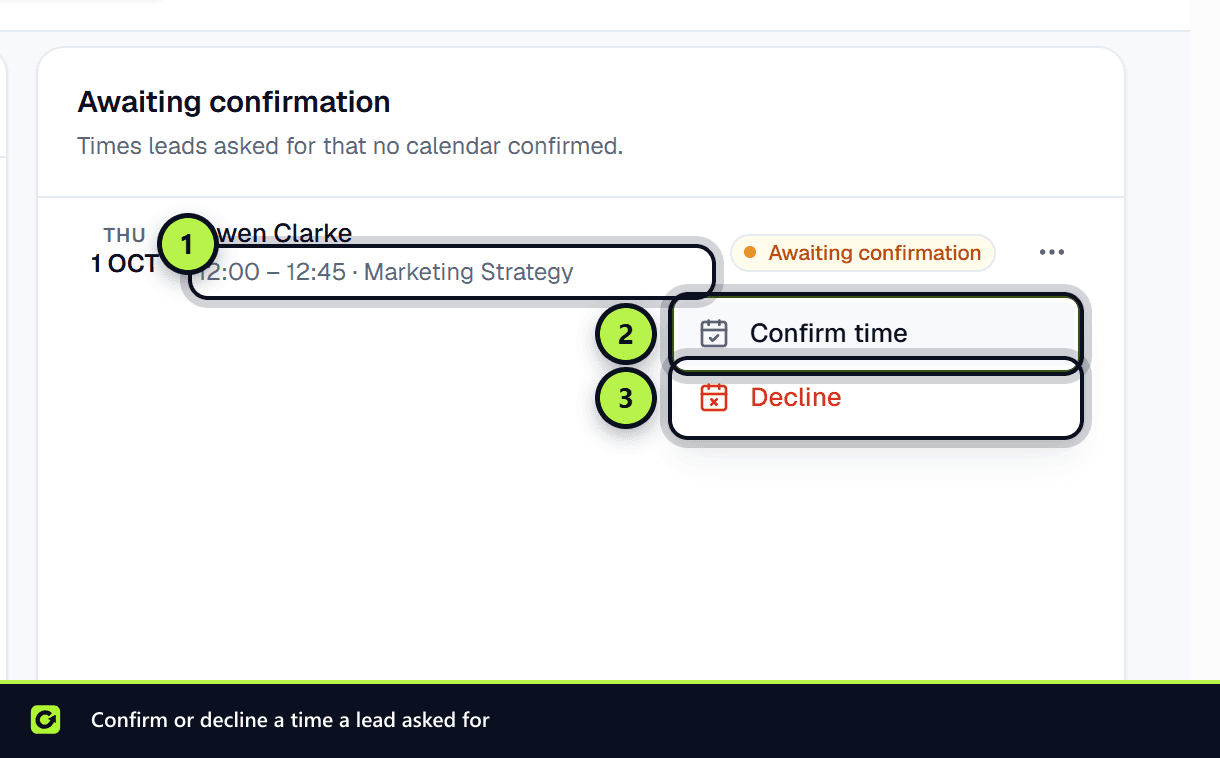
- Step 4: It appears on your Dashboard under Awaiting confirmation.
The same happens with Google Calendar if the connection has stopped working.
Confirm or decline a request
On the Dashboard, in Awaiting confirmation, each request has two buttons:
- Confirm time: the booking becomes Scheduled, the lead moves to Booked, automatic follow-up stops, and booking reminders start if you have them on.
- Decline: the request is cancelled.
Confirming is the only way a request becomes a booking. Let the lead know the outcome yourself; ClientTurn does not send a message when you confirm or decline.
Record what happened
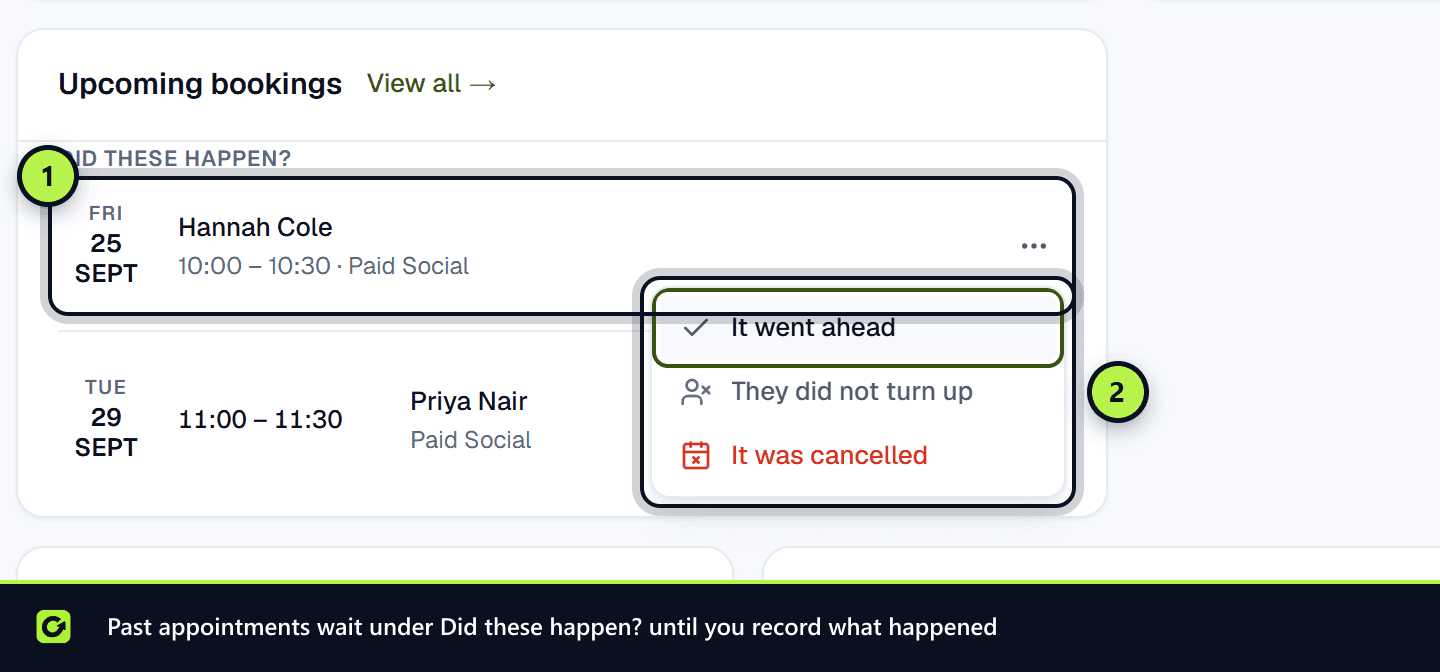
After a scheduled meeting, record the outcome from Upcoming bookings on the Dashboard:
- It went ahead
- They did not turn up
- It was cancelled
A no-show or cancellation flags the lead for your team's attention, so it does not quietly disappear. Changing a booking here does not change it in Calendly or Google Calendar.
Members, admins and owners can confirm, decline and record outcomes.
Related
Screenshots
Still stuck?
Customers can raise a ticket from the help button inside the app. Not a customer yet? Talk to us.