
Getting started
The product tour
The first-use tour and the short tour on each page, how to move through them or leave, and how to replay any of them
2 min readUpdated 27 September 2026
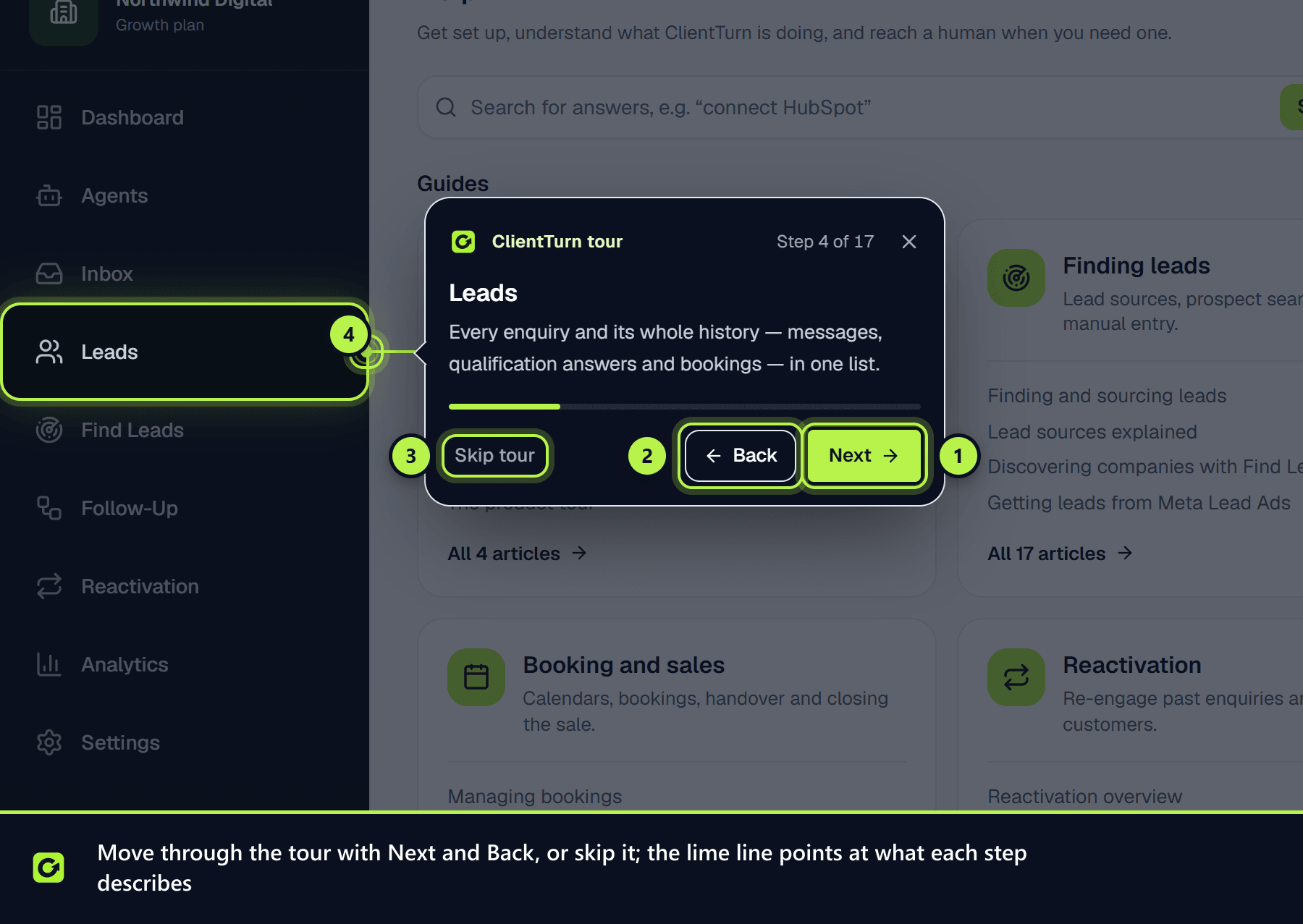
ClientTurn has two kinds of tour. Both highlight one part of the page at a time, with a caption beside it and a lime line from the caption to the part it describes.
- The first-use tour starts on its own the first time you reach the Dashboard after setup. It shows where everything lives.
- Page tours are three to six steps on a single page: what each part is for and what to do there. Each one starts on its own the first time you open that page, but only after the first-use tour is finished or skipped. Only one tour ever runs at a time.
Moving through a tour
- Use Next and Back on each caption, or the arrow keys. The last step has Finish.
- Choose Skip tour, the close button or Esc to leave at any time.
- Where a step belongs to another page, the tour takes you there.
- On a phone the caption is a sheet at the bottom or top of the screen, with the line running to the part it describes.
- Steps about something your plan or role does not include are left out.
Once you finish or leave a tour, it does not start on its own again. Each page's tour is remembered separately.
What the first-use tour covers
- Step 1: Your workspace: where you are.
- Step 2: Dashboard: your day at a glance.
- Step 3: Agents: background workers that run within the limits you set.
- Step 4: Leads: every enquiry and its whole history in one list.
- Step 5: Find Leads, if your plan includes it: searching for businesses that match your ideal customer.
- Step 6: Follow-Up: the follow-up sequence, qualification questions and rules, quiet hours and booking behaviour.
- Step 7: Reactivation: re-engaging older enquiries that went quiet.
- Step 8: Analytics, if your plan includes it: trends across the whole journey.
- Step 9: Settings: your business profile, team, messaging and connections.
- Step 10: Revenue control: the Dashboard cards that show where value is won or lost.
- Step 11: Your leads and the lead drawer: filtering, and the conversation, qualification result and next action without leaving the list.
- Step 12: Inbox: replies from every channel, and anything handed to a person.
- Step 13: Copilot: asking about your workspace in plain English.
- Step 14: Help: searching the help centre, raising a ticket and checking system status.
- Step 15: Connect your tools: lead sources, mailbox, calendar and CRM in Settings → Connections.
Page tours
There is a page tour for the Dashboard, Leads, Follow-Up, Reactivation, Settings, Find Leads, Agents, Analytics and Inbox. For example, the Leads tour covers Add lead and Import, the quick filters, search and Filters, and opening a lead. The Follow-Up tour ends on the Qualification view.
Replay a tour
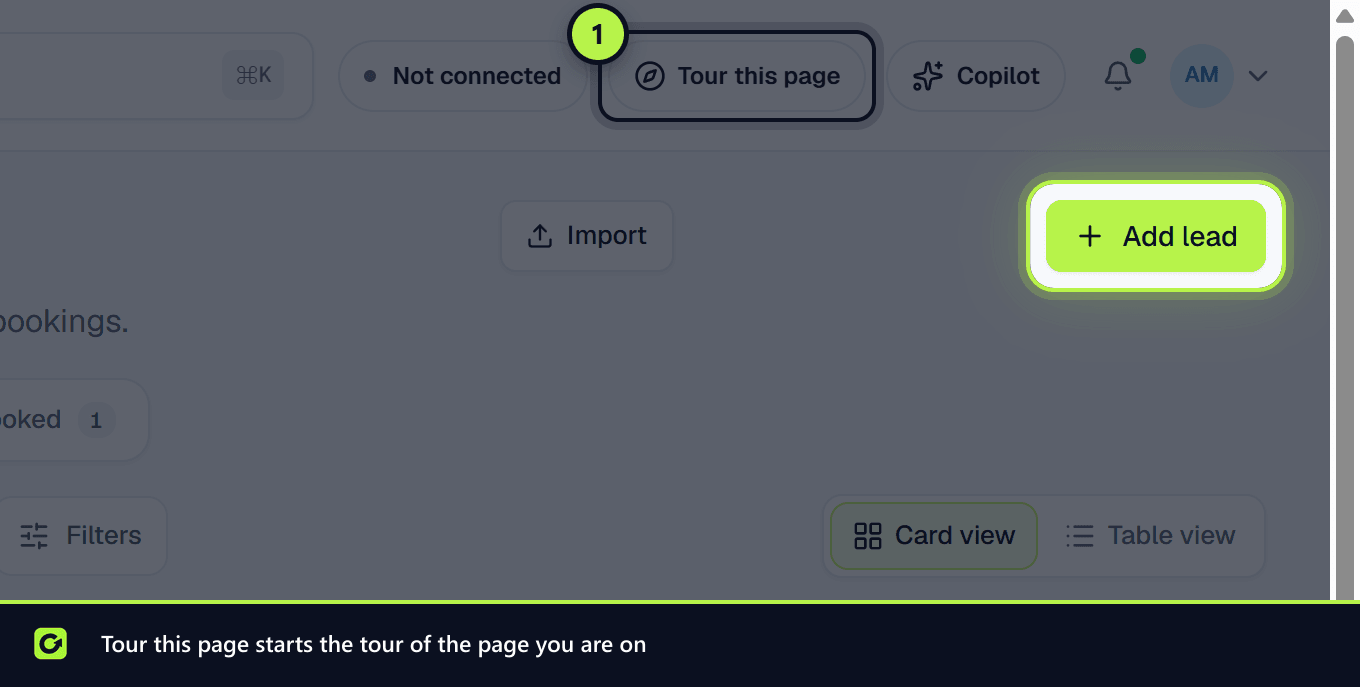
- Tour this page: the compass button in the top bar starts the current page's tour. On smaller screens it shows the compass only.
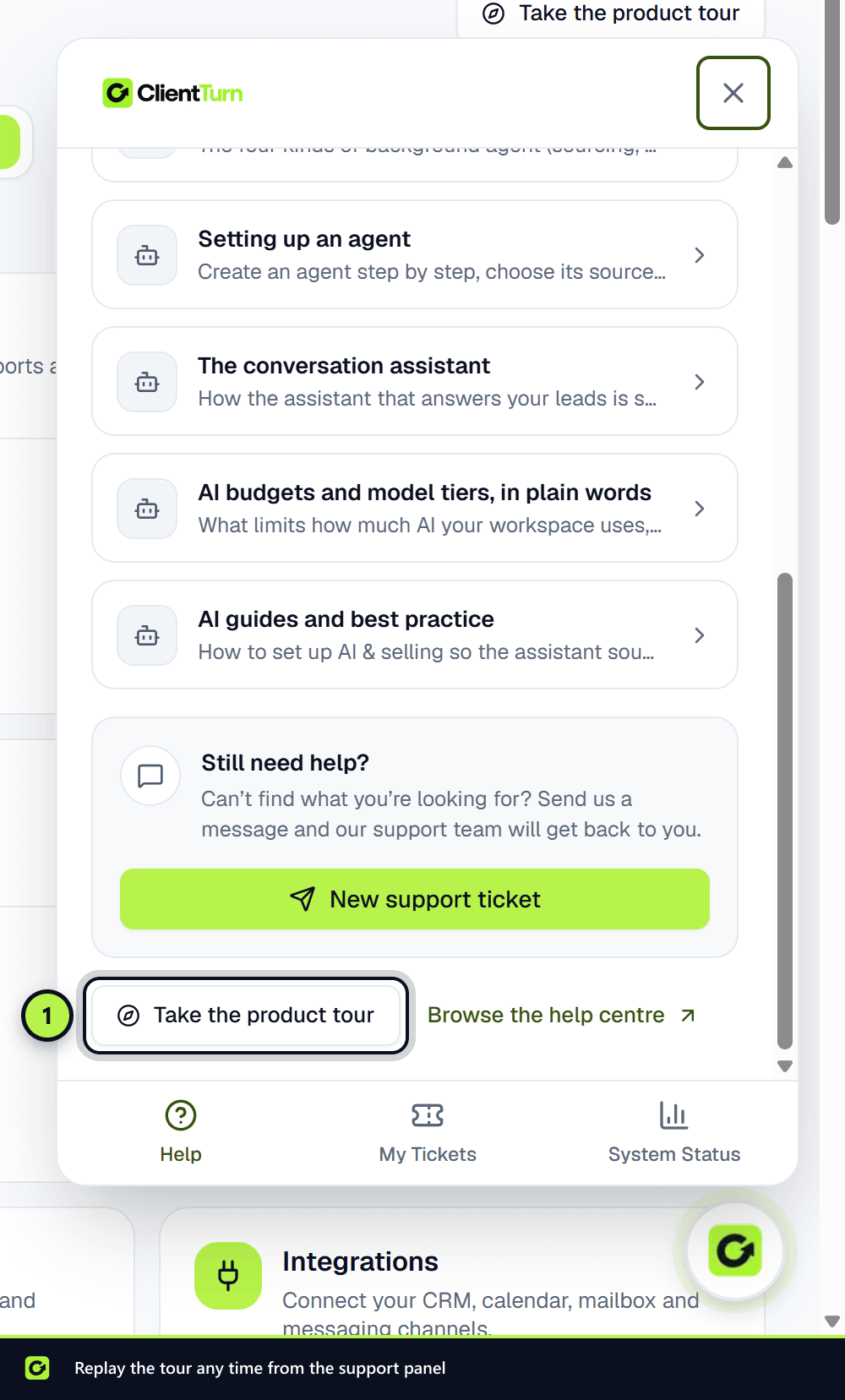
- Take the product tour replays the first-use tour, from the round help button at the bottom right of every page (on its Help tab) or from the top of the Help page.
- Tour a page on the Help page lists every page tour. Choosing one takes you to that page and starts it.
Related
Screenshots
Still stuck?
Customers can raise a ticket from the help button inside the app. Not a customer yet? Talk to us.