
Getting started
Setting up your workspace
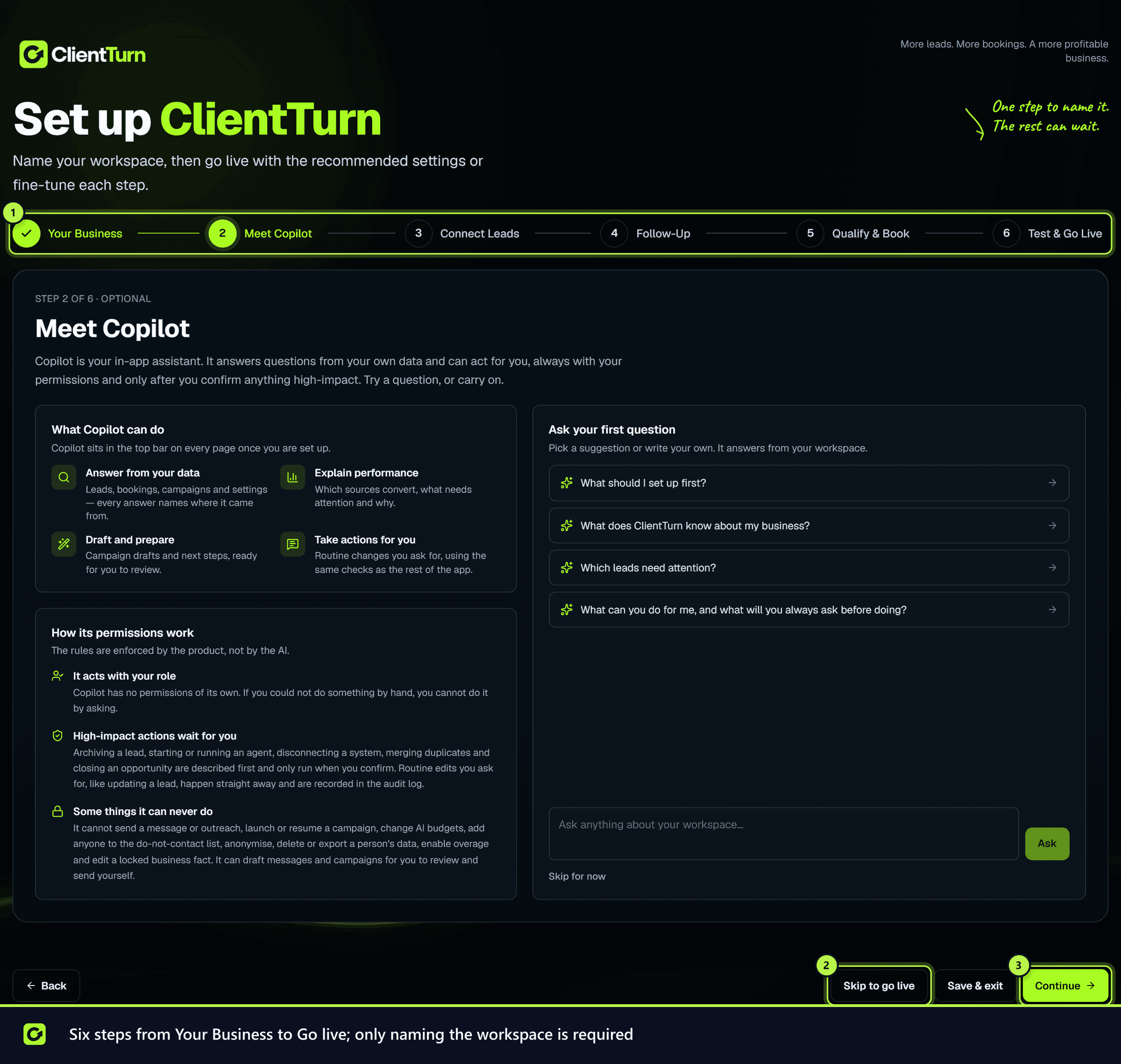
The six setup steps, from naming your workspace to going live, which one is required, and how to skip the rest
4 min readUpdated 27 September 2026
After you start your trial, ClientTurn walks you through six steps before you reach the app. Only the first is required: name your workspace. Every other step already holds recommended settings, is marked Optional, and can be skipped.
You can leave at any point with Save & exit and pick up where you left off; until setup is finished, signing in brings you back to it.
Each step has Back, Save & exit and Continue at the bottom, plus Skip to go live on every step but the last. If Continue is not available, the reason is shown above it.
Skip to go live
Skip to go live saves the step you are on (on the first step, your workspace name and services), uses the recommended settings for anything you have not set up yet, and takes you to Test & Go Live. Anything you already set up is kept. The recommended settings are the standard follow-up sequence and two qualifying questions: what the lead needs help with (your services as the answers) and when they want to start. Qualified leads are handed to a person until you connect a calendar.
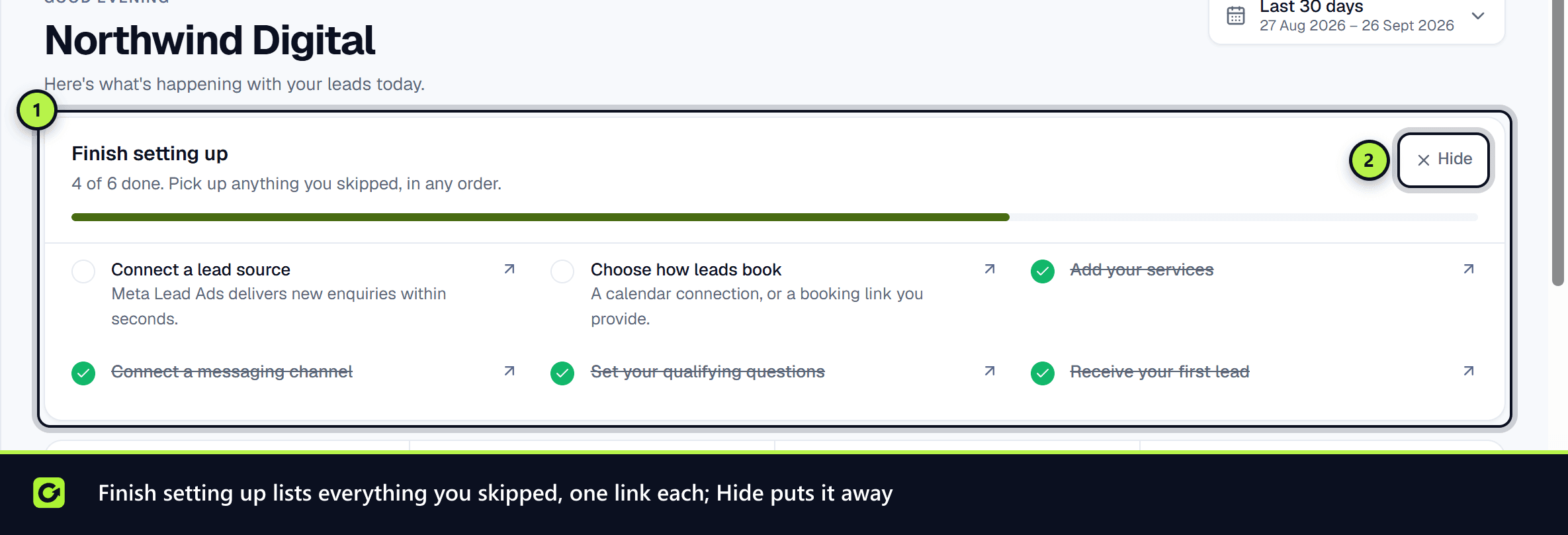
Everything you skip appears afterwards on the Dashboard under Finish setting up.
1. Your Business (required)
- Website: type your address and choose Fill in from website. ClientTurn reads your home page once and fills in your Industry and Phone if it finds them. If your site gives its company name, ClientTurn checks it against the Companies House register; when there is an exact match it suggests the registered name, otherwise the name your site uses. Choose Use this name to take it (it is offered only while the name field is empty). Nothing is saved until you continue, and every field stays editable.
- Workspace name (required): usually your company name, at least two characters. It starts empty, and you type it yourself.
- Industry, Phone and Timezone. The timezone list holds every time zone, with Europe/London first. Quiet hours and every timestamp use it.
- Services: three suggestions for your industry are already filled in. Change the industry and they change with it, until you edit them yourself. Keep at least one.
- Business hours and Service area are optional.
2. Meet Copilot (optional)
A short introduction to the assistant in your top bar: what it can do, the rules it follows, and a first question for it to answer from your workspace. Asking is optional. See Your first Copilot session.
3. Connect Leads (optional)
Choose Connect Meta. It takes you to Facebook to sign in and approve access, then brings you back to this step. There is nothing to map: ClientTurn picks the Page you manage (preferring one linked to Instagram), finds every lead form on it and maps the answers. To use a different Page, choose it later in Settings → Connections → Meta Lead Ads. Run connection test checks that leads can be pulled. This step is optional: you can go live and connect lead sources later in Settings → Connections. See Lead sources explained.
4. Follow-Up (optional)
A recommended sequence is already filled in. To change it:
- Choose the channel for follow-up, and check your sender identity.
- Write the opening message sent to new leads, and the follow-up messages sent if they do not reply, with the delay before each.
- Set the quiet hours when nothing is sent, in your local time.
- Add opt-out wording. It must mention replying STOP.
By default the first message goes instantly by SMS when the lead gave a mobile number, and later steps go by email from your connected mailbox. You can change this later in Follow-Up → Channel & SMS budget. See Channel & SMS budget.
5. Qualify & Book (optional)
- Two recommended questions are already filled in from your services. Edit them, add your own, and choose a rule for each answer: for example, whether an answer is required, or which answers disqualify.
- Choose the Booking destination for qualified leads: Calendly, Google Calendar, or a Booking link you paste in, or hand them to a person.
Every lead ends up Qualified, Review (a person decides) or Not qualified.
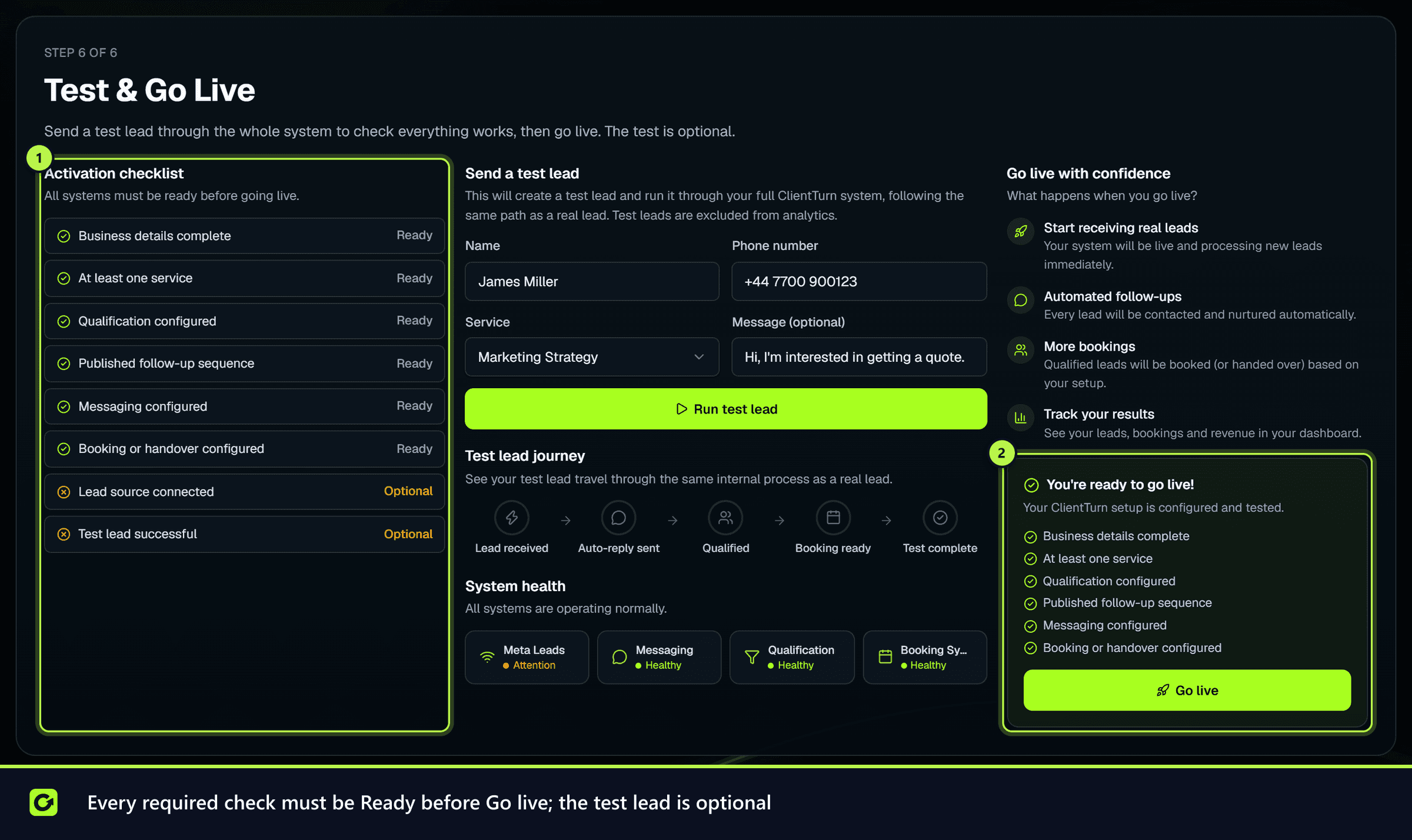
6. Test & Go Live
- Step 1: Check the readiness list. Business details, at least one service, qualification, a published follow-up sequence, messaging and booking (or handover) must all show Ready. A lead source and the test lead are recommended but optional.
- Step 2: Enter a name, phone number and service, and choose Run test lead. It follows the same path as a real lead, and you can watch it go from Lead received to Test complete. Test leads are left out of your analytics.
- Step 3: Choose Go live.
After setup
You land on the Dashboard, and a short product tour starts. Anything you skipped is listed under Finish setting up at the top of the Dashboard, each item linking to the page where it is done; choose Hide to put the list away. See The product tour and Your first week.
Everything from setup can be changed later in Settings.
Screenshots
Still stuck?
Customers can raise a ticket from the help button inside the app. Not a customer yet? Talk to us.