
Billing
Usage and limits
Where to see your use against every limit this period and today, what happens when you reach each one, how daily sending limits work, and why nothing is charged past an allowance
11 min readUpdated 30 September 2026
Every limit on your plan is shown in one place: Settings → Billing & Usage → Usage & limits. Limits are enforced at the moment a message is sent, not only shown on this page. Only the workspace owner can open Billing & Usage.
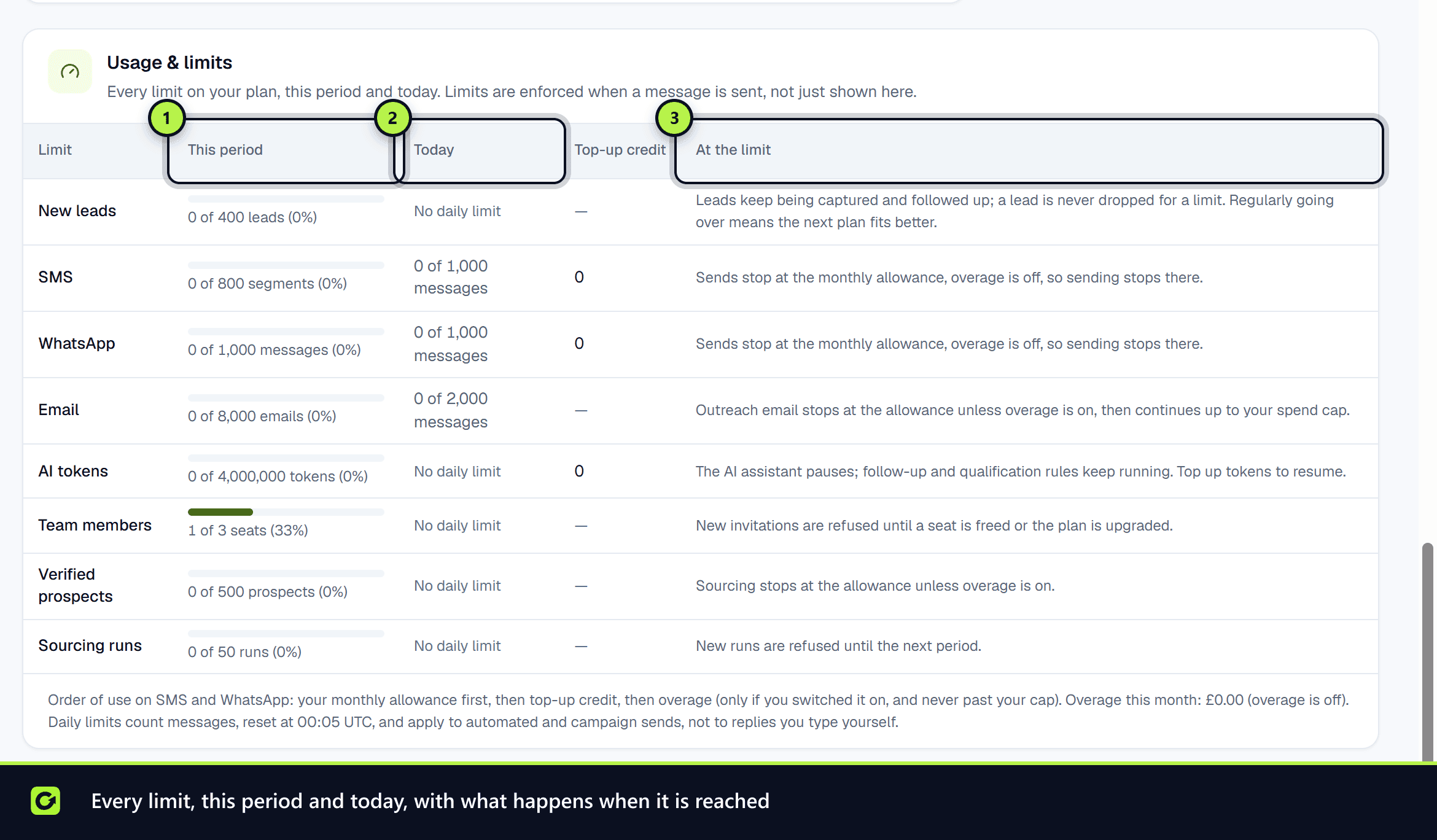
The Usage & limits table
Each row is one limit. The columns are:
| Column | What it shows |
|---|---|
| Limit | The name of the limit |
| This period | Use so far this billing period, against the allowance |
| Today | Messages sent today against the daily limit, or No daily limit |
| Top-up credit | Credit you have bought for that channel |
| At the limit | What ClientTurn does when the limit is reached |
When a limit reaches 80%, a card appears under its row with the options that apply: the next plan, if it raises that limit, and top-up bundles. For SMS and WhatsApp the card appears earlier, from 75%, and counts your top-up credit as well as the allowance (see Running low on SMS or WhatsApp). It names the recommended bundle with a Buy button, for example Buy 500 for £115.
What happens at each limit
| Limit | When it is reached |
|---|---|
| New leads | Enquiries that arrive (ad forms, web forms, connectors, messages) are always captured and never dropped, but past the limit they are held without follow-up until the next period. Adding a lead yourself (Add lead, an import that starts follow-up, the API or an AI assistant) is refused until then. If you often go over, the next plan fits better |
| SMS | Sends use top-up credit next. When that is used up too, SMS sending stops until the period resets or you buy more credit. See What happens at zero |
| WhatsApp has no included messages. It is a paid add-on on Growth and above, paid in WhatsApp tokens: 2 for a conversation reply or utility template, 5 for a marketing template. The row counts tokens. When there are too few tokens for the next message, WhatsApp sending stops until you buy more | |
| Email (outreach) | Outreach email stops at the allowance until the next period, or until you upgrade |
| AI credits | The assistant pauses. Follow-up and qualification rules keep running. Top up AI credits to resume |
| Team members | New invitations are refused until a seat is freed or the plan is upgraded. Pending invitations count as seats |
| Saved searches | Active saved searches are counted. A new or resumed one is refused at the limit; pause or stop one to free a slot |
| Sender identities | A new sending address is refused at the limit. Re-saving an existing identity is always allowed |
| Verified prospects | Sourcing stops at the allowance until the next period, or until you upgrade |
| Sourcing runs | New runs are refused until the next period |
| Reactivation contacts | Counted per billing period: each contact counts once per campaign, when it joins that campaign's audience. A launch, or an added lead, that would take you past the allowance is refused with what is left and what you can do: narrow the audience, wait for the next billing period, or upgrade |
There is no overage on any plan: nothing is ever charged beyond your plan and the credit you have bought.
After a downgrade
You can always move to a smaller plan, even if you are using more than it includes. Nothing is removed. From the day the smaller plan starts, adding more of anything you are over (team members, sender identities, saved searches, intent monitors) is refused until you are back within the plan, and a campaign cannot launch while you have more active sender identities than the plan includes. A banner and Settings → Billing & Usage list exactly what to reduce.
A message that is refused for a limit is not lost silently. The reason is recorded on the message, for example "This month's SMS allowance is used up and there is no top-up credit left".
Channel & SMS budget
Follow-Up → Channel & SMS budget decides which channel automated follow-up uses, and how many SMS segments reminders to a lead who has not replied can use. Owners and admins can change it; choose Save budget.
There are two options:
- SMS for the first message, email after (the default). The first message goes out instantly by SMS when the lead gave a mobile number, and by email otherwise. Later reminders to a lead who has not replied go by email from your connected mailbox, and use SMS only when the lead has no usable email address. Email from your own mailbox does not use your SMS allowance.
- SMS for every step. Every step goes out on the channel it is set to in the sequence, so SMS steps each use your SMS allowance.
Budgeting only ever applies to leads who have not engaged. Once a lead replies, or ClientTurn reads their interest as medium or higher, their follow-up stays on their channel and the AI assistant keeps answering them. A live conversation is never cut short to save SMS.
| Setting | Default | Range | What it counts |
|---|---|---|---|
| Follow-up SMS per lead | 3 | 1 to 20 | Automated follow-up SMS to one lead who has not replied, in one run of the sequence |
| AI reply ceiling | 40 | 20 to 200 | The AI assistant's SMS replies to one lead in any 24 hours. This is a safety limit against a runaway loop or a lead spamming the assistant. A real conversation does not come near it |
- When a lead reaches the follow-up limit, later reminders go by email.
- If the AI reply ceiling is ever reached, the lead is passed to a person, so their message is not left unanswered.
- If an AI reply cannot go by SMS because the allowance and top-up credit are both used up, it goes by email when the lead has an email address and a mailbox is connected. Otherwise the lead is passed to your team. See Running low on SMS or WhatsApp.
- Some of your SMS allowance is kept back for conversations: automated first texts stop using SMS when only the last 10% of the month's allowance is left (half of it in a trial), and go by email instead.
- Booking reminders are never limited.
- A reply you type yourself, and reactivation campaigns (which have their own contact allowance), are not counted against either setting.
- An SMS that is not sent because of a limit has the reason recorded on the message.
Quiet hours, opt-outs and every stop condition are still checked immediately before each message, whichever option you choose.
System notification emails
Alerts and notification emails that ClientTurn sends to you and your team have a daily limit per workspace. When it is reached, the notification still appears in the app; only the email copy is skipped until the next day. Follow-up and campaign email is not affected, because it goes from your own mailbox.
Daily sending limits
Monthly allowances control what you pay for. Daily limits control pace: they stop a large campaign from sending everything in one day.
- They count messages, not SMS segments.
- They reset at midnight UTC.
- They apply to automated follow-up and campaign sends. A reply you type yourself is not held back by them.
- A message over the daily limit is held until the next day, not dropped.
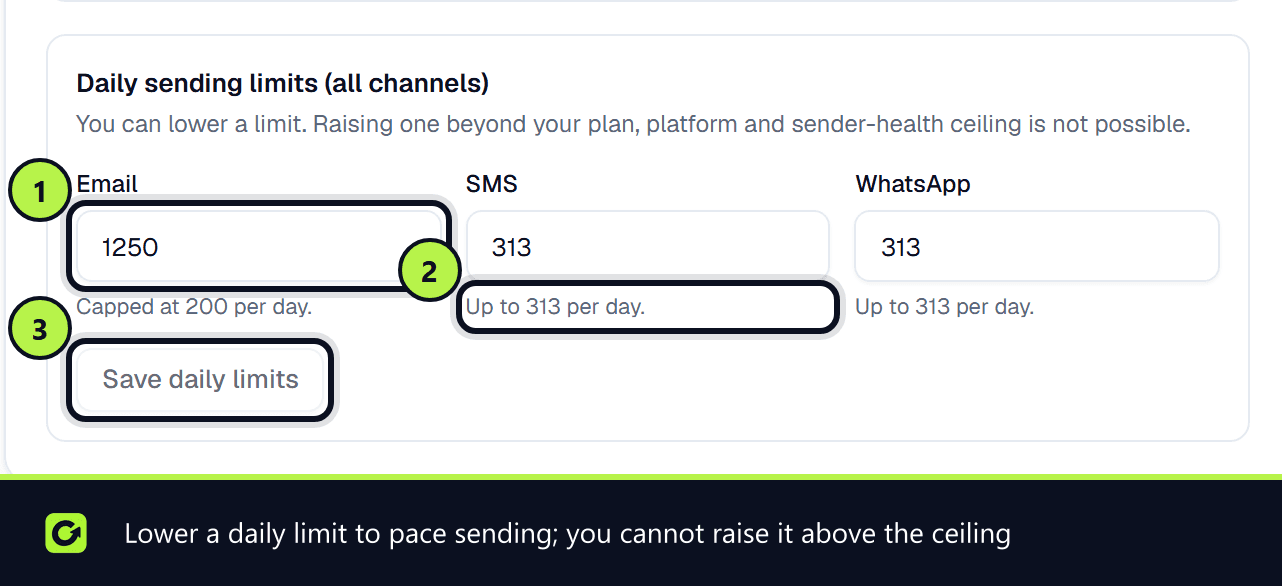
To change them, go to Communication allocation → Daily sending limits (all channels). You can lower a limit. You cannot raise one above the ceiling shown under the box, which comes from the platform, your plan and, for email, the health of your sending identities. Choose Save daily limits.
Other panels on the page
- Usage this month shows leads, messages and team members against the plan, and the date usage resets.
- Monthly usage overview covers prospects sourced, messages sent, intent monitors and search runs.
- Communication allocation lets you split your monthly message allowance between channels. It must total exactly 100%.
- Channel usage shows messages sent, delivery and replies per channel this month.
- Usage history shows past months.
- AI credits shows AI credits used and left (and the percentage), your top-up balance, roughly how many assistant replies remain, and when the included credits renew.
Running low on SMS or WhatsApp
ClientTurn tells you before SMS or WhatsApp runs out, so you can buy a bundle in time.
What is measured. What you have left is your plan's allowance left this period plus your top-up credit. For WhatsApp, which has no allowance, it is your WhatsApp tokens, and fewer tokens than one reply (2) counts as nothing left. The percentage is how much of everything you had this period you have used. Buying credit lowers it, because you have more left.
When you are told. At 75% used, at 90% used, and when there is nothing left. Each is sent once per billing period for each channel. If you buy credit and later run low again in the same period, you are told again.
Who is told, and where.
- The workspace owner and admins get a notification in the app and by email.
- A banner appears across the app, for example SMS is 75% used: 250 SMS segments left.
- The SMS or WhatsApp row in Usage & limits shows the same message.
All three use the same figures, so they always agree.
What the message says. How many SMS segments or WhatsApp tokens are left (for WhatsApp, with roughly how many conversation replies or marketing messages they cover), the date your included allowance resets (top-up credit never expires), how many more you are likely to need at your current rate, and what happens at zero.
The recommended bundle. ClientTurn works out your average daily use this period, projects it to the date the allowance resets, and recommends the smallest bundle that covers the shortfall. If even the largest bundle is not enough, it recommends the largest one. Buy SMS credits (or Buy WhatsApp tokens) opens Settings → Billing & Usage → Message credits with that bundle highlighted as Recommended. Choose Buy to go to checkout. Nothing is bought until you pay in Stripe.
What happens at zero. When the allowance and your top-up credit for a channel are both used up:
- First texts to new leads are not sent by SMS.
- Automated SMS follow-up steps go by email instead when the lead has an email address and a mailbox is connected. Otherwise they are not sent.
- An AI reply to a lead who texted back goes by email when the lead has an email address and a mailbox is connected. Otherwise the lead is handed to your team, the AI stops answering that lead, and the owner and admins get a notification to top up.
- Texts you type yourself are refused.
WhatsApp works the same way once your WhatsApp tokens are used up.
Nothing is charged beyond what you have bought. There is no overage: the only way to keep sending is to buy credit, wait for the allowance to reset, or upgrade.
During a trial. A trial includes a small number of SMS segments to show texting working. Instead of a bundle, the message says Start your plan to keep texting, with Choose your plan and Upgrade now. Your plan's full SMS allowance starts when the trial ends. See Your free trial.
Upgrade suggestions
Now and then, ClientTurn suggests something that would help: an AI credit pack when the assistant's tokens are at 80% or used up, WhatsApp tokens (or, on Starter, the plan that includes WhatsApp) when a lead asks to talk on WhatsApp, or the next plan when you keep reaching your lead cap, your seats or your verified prospects. After a good month you may see a short note about your booked meetings.
They are kept rare on purpose:
- Only the owner and admins see them, and only the owner can buy. Never during a trial: the trial has its own Upgrade now prompt.
- One at a time, usually as a banner or a small card. A pop-up is used only when something has actually stopped (the assistant is paused, or a lead is waiting on WhatsApp), only on the Dashboard, at most once a week, and at most once a month for the same offer.
- Never while you are writing a message, setting up, or paying.
- Not now (or the close button) hides that suggestion for 30 days.
- They never repeat a running-low banner: while one of those is showing, only a suggestion about something that has stopped can appear.
- An upgrade always asks you to confirm first, says what is charged today, and keeps your billing interval (annual stays annual).
To turn them off, go to Settings → Billing & Usage → Add more when you need it and untick Show me upgrade suggestions. The same card always lists the packs and the next plan, with prices, if you want to look without being prompted.
Warnings you will see
- The SMS and WhatsApp warnings described in Running low on SMS or WhatsApp: a banner, a notification and an email at 75%, 90% and when nothing is left.
- A notification when AI credit use passes 80% and again at 95%.
Related
Screenshots
Still stuck?
Customers can raise a ticket from the help button inside the app. Not a customer yet? Talk to us.