
Integrations
Connecting Calendly
Send your Calendly link to qualified leads and record each booking against the right lead automatically
1 min readUpdated 26 September 2026
With Calendly connected, a qualified lead is sent your Calendly link, and when they book, the booking is recorded against them in ClientTurn.
Connect Calendly
- Step 1: Open Settings → Connections, find Calendly under Booking and choose Connect, then Connect again in the panel.
- Step 2: Sign in to Calendly and approve access.
- Step 3: ClientTurn subscribes to your organisation's booking notifications, so new bookings and cancellations are reported back automatically.
Use it for bookings
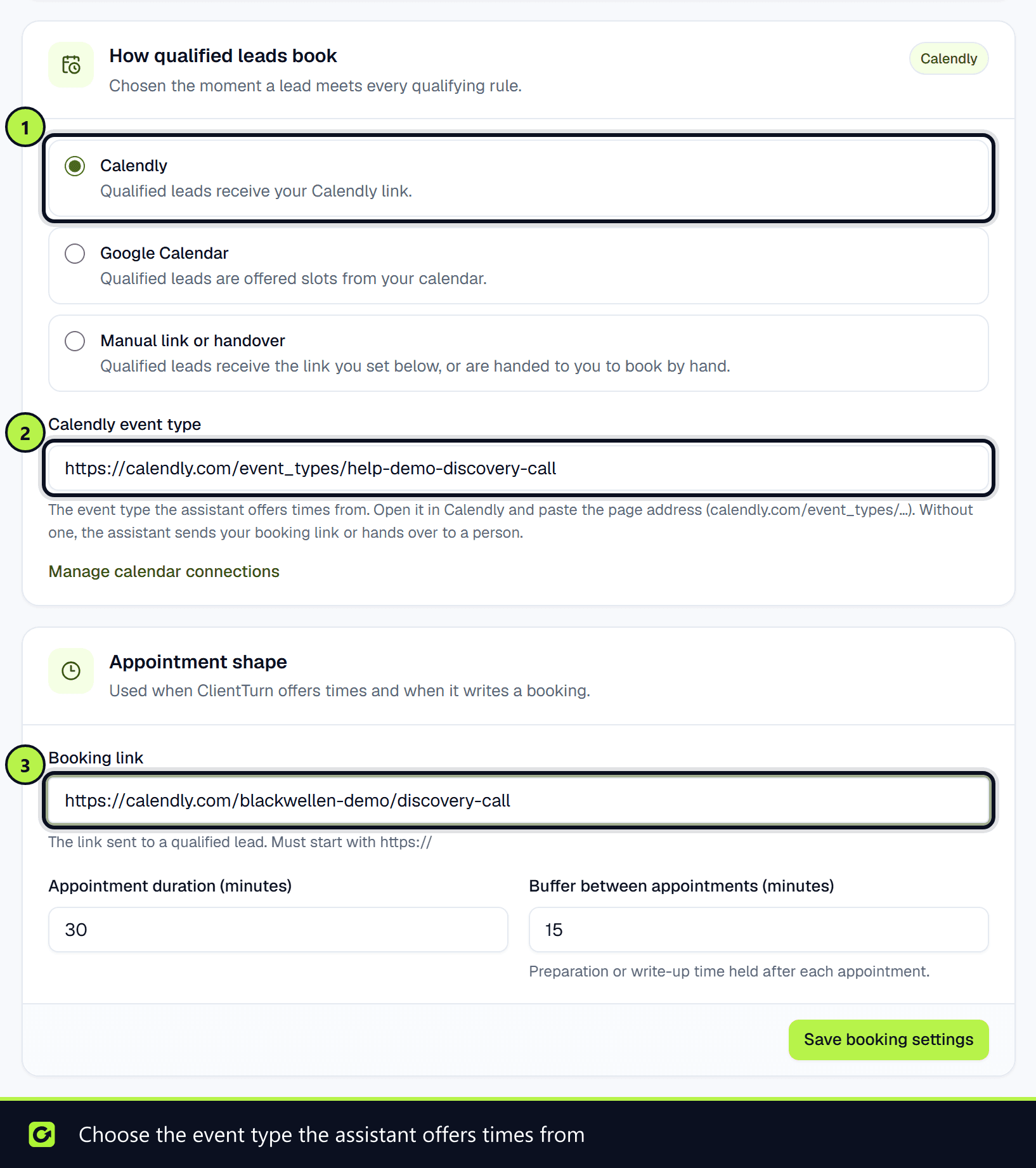
- Step 1: Open Settings → Workspace and find How qualified leads book.
- Step 2: Choose Calendly. The option is only available once Calendly is connected.
- Step 3: Under Appointment shape, set the Booking link to the Calendly link you want leads to receive. It must start with
https://.
How bookings are matched
When someone books, Calendly tells ClientTurn the invitee's email address, and the booking is attached to the lead with that email. A reschedule updates the same booking rather than creating a second one, and a cancellation is recorded as cancelled.
If a booking arrives for an email address that matches no lead, you are notified with the details so someone can attach it by hand.
Related
Screenshots
Still stuck?
Customers can raise a ticket from the help button inside the app. Not a customer yet? Talk to us.