
Integrations
Setting up email outreach
Connect your own mailbox over SMTP and IMAP so campaign email sends from your address and replies come back to ClientTurn
2 min readUpdated 27 September 2026
Campaign email is sent from your own address, through your own mail server, so replies come back to your inbox and your domain's reputation is your own. You connect the mailbox once, in Settings → Connections, under Your sending mailbox.
Before you start
- You need to be an owner or admin.
- Have your mail server settings to hand, or use one of the presets.
- Google Workspace / Gmail needs an app password, which requires 2-step verification on the account.
- Microsoft 365 / Outlook needs SMTP AUTH enabled for the mailbox in the Microsoft admin centre.
Connect your mailbox
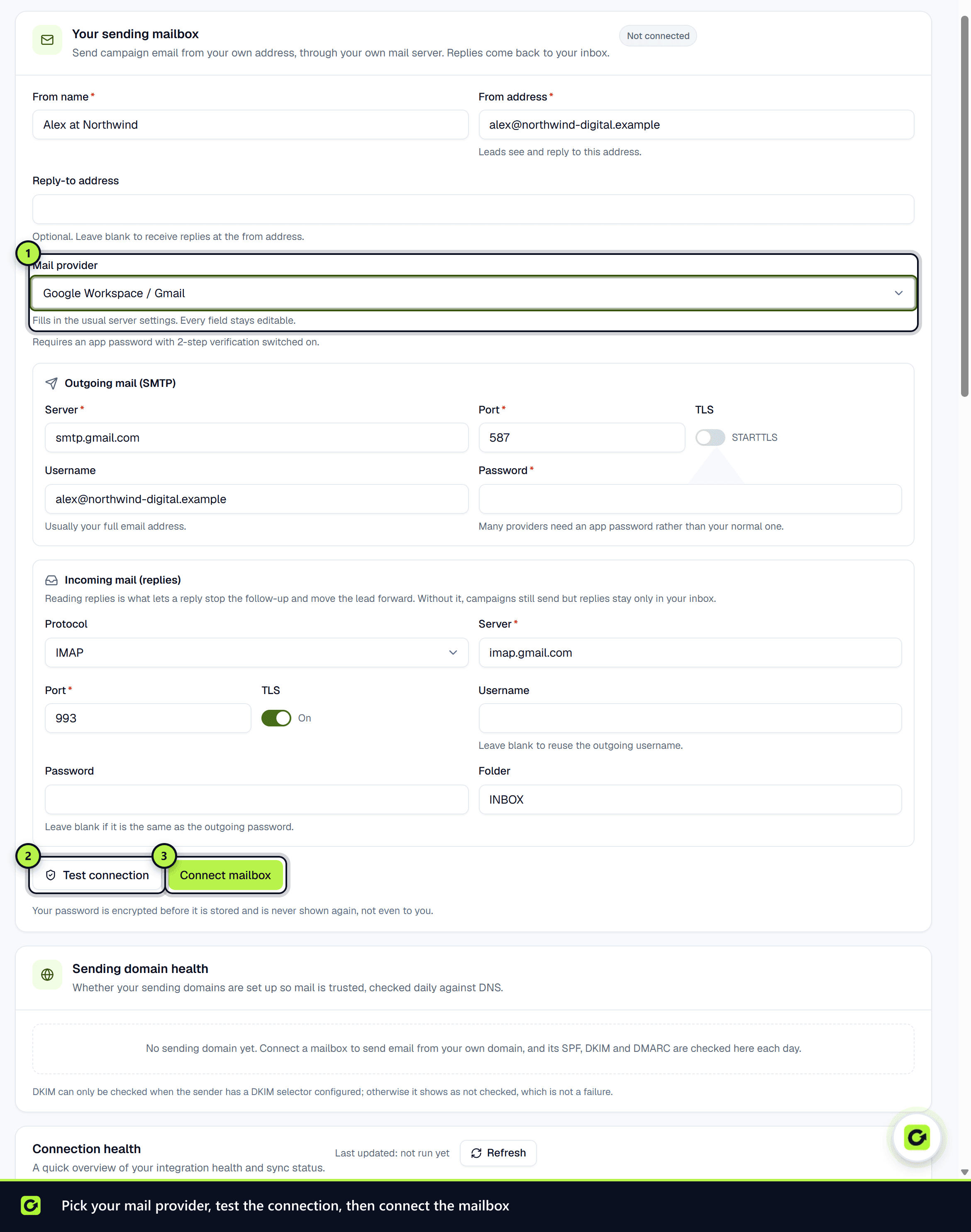
- Step 1: Open Settings → Connections. Your sending mailbox is the first card.
- Step 2: Enter the From name and From address leads will see and reply to. Optionally add a Reply-to address if replies should go elsewhere.
- Step 3: Choose your Mail provider: Google Workspace / Gmail, Microsoft 365 / Outlook, IONOS, or Other / custom server. The preset fills in the usual server settings; every field stays editable.
- Step 4: Check the outgoing (SMTP) Server, Port, TLS, Username (usually your full email address) and Password.
- Step 5: Choose how replies are read: IMAP, POP3, or Do not read replies. For IMAP or POP3, check the incoming server, port and TLS. Leave the incoming username and password blank if they are the same as outgoing, and choose the Folder to read.
- Step 6: Choose Test connection. ClientTurn signs in to both servers without sending anything.
- Step 7: Choose Connect mailbox. Then use Send a test email to see a real message arrive.
Your password is encrypted before it is stored and is never shown again, not even to you. Disconnecting deletes it.
Check domain health
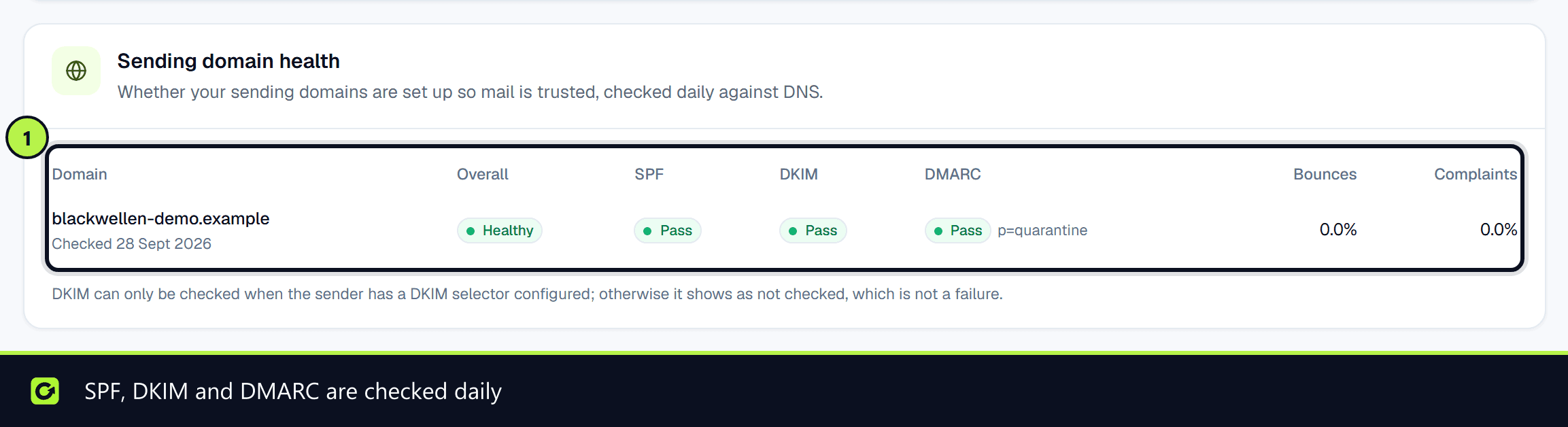
Below the mailbox, Sending domain health shows SPF, DKIM and DMARC for each sending domain, checked daily against DNS, along with recent bounces and complaints. SPF, DKIM and DMARC should all be valid before you send cold outreach at any volume.
How ClientTurn protects your mailbox
- Sending is capped per mailbox each day, and a newly connected mailbox starts with lower limits that rise as it builds history. Settings → AI & selling → Channels shows today's caps.
- Complaint rates are watched. Sending is paused rather than allowed to damage your domain's reputation.
- The mailbox and sender health are re-checked immediately before every send.
If the mailbox stops working, the card says This mailbox stopped working with the server's reason. Update the details and save.
Related
Screenshots
Still stuck?
Customers can raise a ticket from the help button inside the app. Not a customer yet? Talk to us.