
Integrations
Connecting Salesforce
Push qualified leads and bookings into Salesforce as leads and opportunities, and optionally import new Salesforce leads
2 min readUpdated 26 September 2026
Connect
- Step 1: Open Settings → Connections, find Salesforce under CRM and choose Connect, then Connect again in the panel.
- Step 2: Sign in to Salesforce and approve access. ClientTurn asks only for API access and a refresh token, so the connection keeps working without you signing in again.
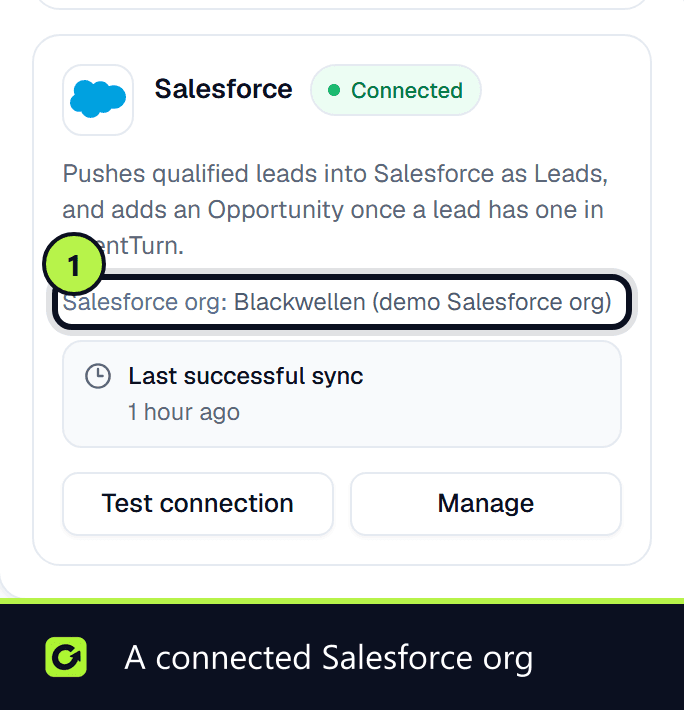
- Step 3: Back in Connections, the card shows your org.
What gets pushed
A lead that reaches Qualified, Booked or Won is pushed to Salesforce as a Lead with first name, last name, email, phone and postcode, and Lead Source set to "Client Turn". Pushing again updates the same Salesforce Lead.
ClientTurn also writes an Opportunity that follows the lead's deal. Salesforce needs a stage name from your org's own stage list, so ClientTurn reads your active opportunity stages and picks from them: your first won stage for Won, your first closed-lost stage for Lost, and a matching open stage otherwise. If none matches, only the opportunity is skipped; the Lead is still kept.
When a conversation is handed to a person, the lead brief is added to the record as a note.
Import Salesforce leads (optional)
You can switch on Import contacts from Salesforce in Settings → Connections. New and changed Salesforce Leads are added as imported leads, with no follow-up started, and assigned to the workspace member whose email matches the Salesforce owner. See Pulling leads from your CRM.
If it stops working
Salesforce sessions end according to your org's session policy. ClientTurn refreshes the session automatically; if Salesforce refuses, the card shows Reconnect required. Choose Reconnect.
Related
Screenshots
Still stuck?
Customers can raise a ticket from the help button inside the app. Not a customer yet? Talk to us.