
Integrations
Connecting Meta (Facebook and Instagram)
Connect your Facebook Page so lead-form submissions, Messenger and Instagram messages reach ClientTurn, and what each permission is for
2 min readUpdated 26 September 2026
One Meta connection covers your Facebook Page's lead forms, including Instagram lead ads, and messages sent to the Page on Messenger and Instagram.
Connect
- Step 1: Open Settings → Connections, find Meta Lead Ads under Ads / lead sources and choose Connect, then Connect again in the panel. Only owners and admins can connect.
- Step 2: Sign in to Facebook, choose the Pages ClientTurn may use, and approve the permissions.
- Step 3: Back in Connections, a message confirms Meta Lead Ads connected, and the card shows Connected and the account name. If the connection did not complete, a message says That connection did not complete and nothing is connected; choose Connect again.
Choosing the Page
Leads and messages are received for one Facebook Page. When you connect, ClientTurn picks a Page you manage, preferring one linked to Instagram. Its lead forms are found automatically and their fields mapped for you.
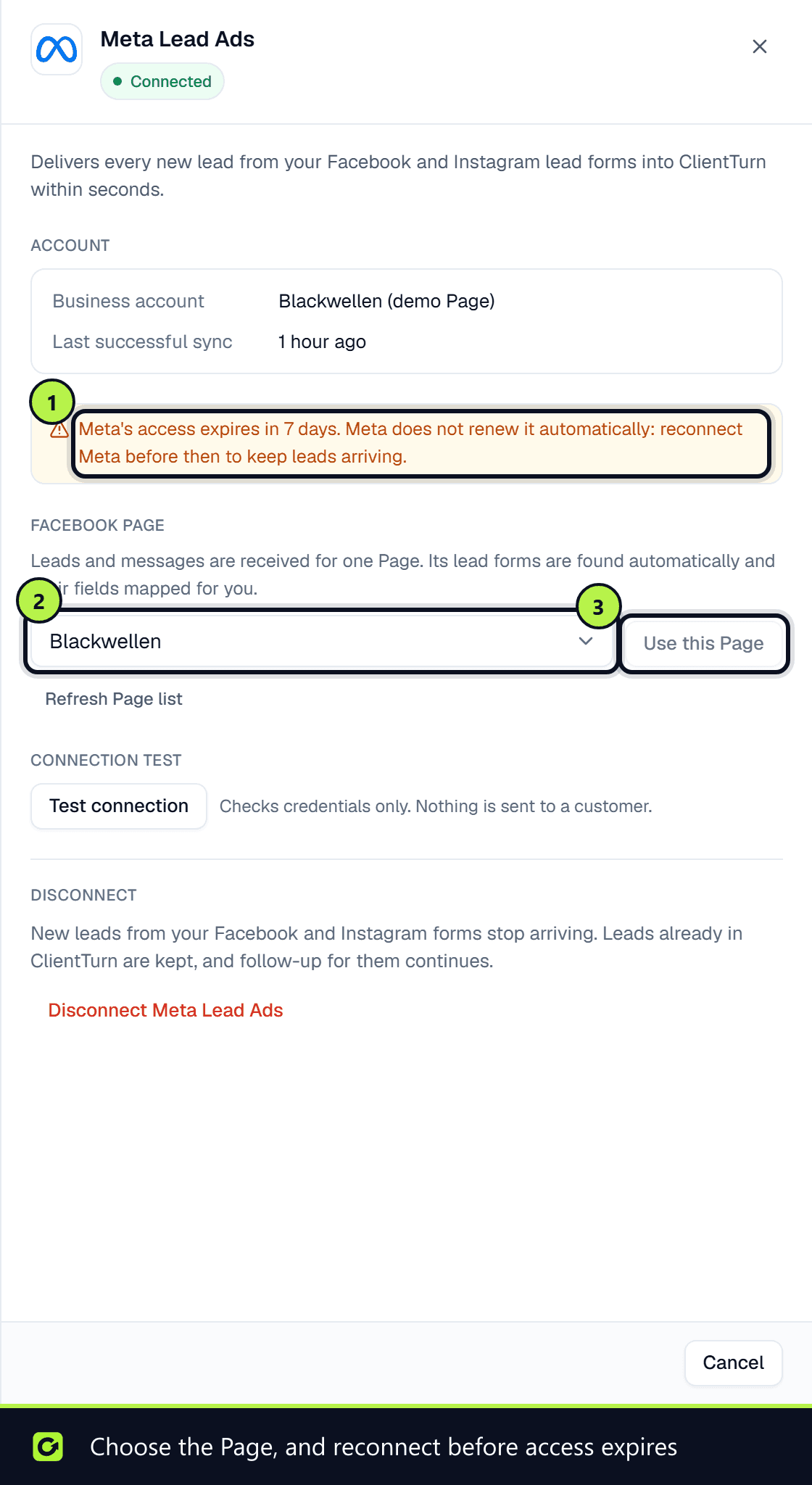
To use a different Page, open the card's Manage panel. Under Facebook Page, choose Load my Pages (or Refresh Page list), pick the Page and choose Use this Page. Only owners and admins can change it.
You can also connect Meta during setup, in the Connect Leads step.
What each permission is for
| Permission | Why ClientTurn needs it |
|---|---|
| Show a list of your Pages | So you can choose which Page to connect |
| Read lead-form submissions | To collect leads from your forms |
| Manage Page ads and metadata | To list the Page's lead forms, and subscribe the Page to instant lead notifications |
| Read Page engagement | To read comments and mentions on your own Page for prospecting |
| Page messaging | To send and receive Messenger conversations |
What it delivers
- Lead forms: every submission on the connected Page's lead forms, within seconds. See Getting leads from Meta Lead Ads.
- Messages: Messenger and Instagram direct messages to your Page arrive in Inbox. Meta allows a business to reply freely only within 24 hours of the person's last message, and the assistant stops at that point.
Disconnecting
In the card's Manage panel, choose Disconnect Meta Lead Ads. New leads from your Facebook and Instagram forms stop arriving. Leads already in ClientTurn are kept, and follow-up for them continues.
Renewing access every 60 days
Meta's access lasts about 60 days and Meta does not renew it automatically: the only way to renew it is to reconnect. The Manage panel shows when it expires. From 10 days before, it shows a warning with the days left; once it has expired, it says new leads are not arriving. Choose Reconnect and sign in again to renew it.
Reconnect required
Meta withdraws access when, for example, the person who connected changes their Facebook password, loses their role on the Page, or removes the app in Meta's business settings. The card then shows Reconnect required; choose Reconnect and sign in again.
Related
Screenshots
Still stuck?
Customers can raise a ticket from the help button inside the app. Not a customer yet? Talk to us.