
Integrations
Connecting Slack
Post new-lead, handover, booking and warm-prospect alerts, and an optional daily digest, into a Slack channel your team already watches
2 min readUpdated 27 September 2026
Slack is a notification channel only. Connecting it changes nothing about how leads are handled.
1. Connect Slack
- Step 1: Open Settings → Connections, find Slack under Messaging and choose Connect, then Connect again in the panel.
- Step 2: Choose the Slack workspace and approve. ClientTurn asks only for permission to post messages.
2. Choose the channel
- Step 1: In Slack, open the channel you want alerts in and type
/invite @ClientTurn. Without the invite, alerts to that channel fail. - Step 2: Open the channel's details (its About panel) and copy the channel ID, which looks like
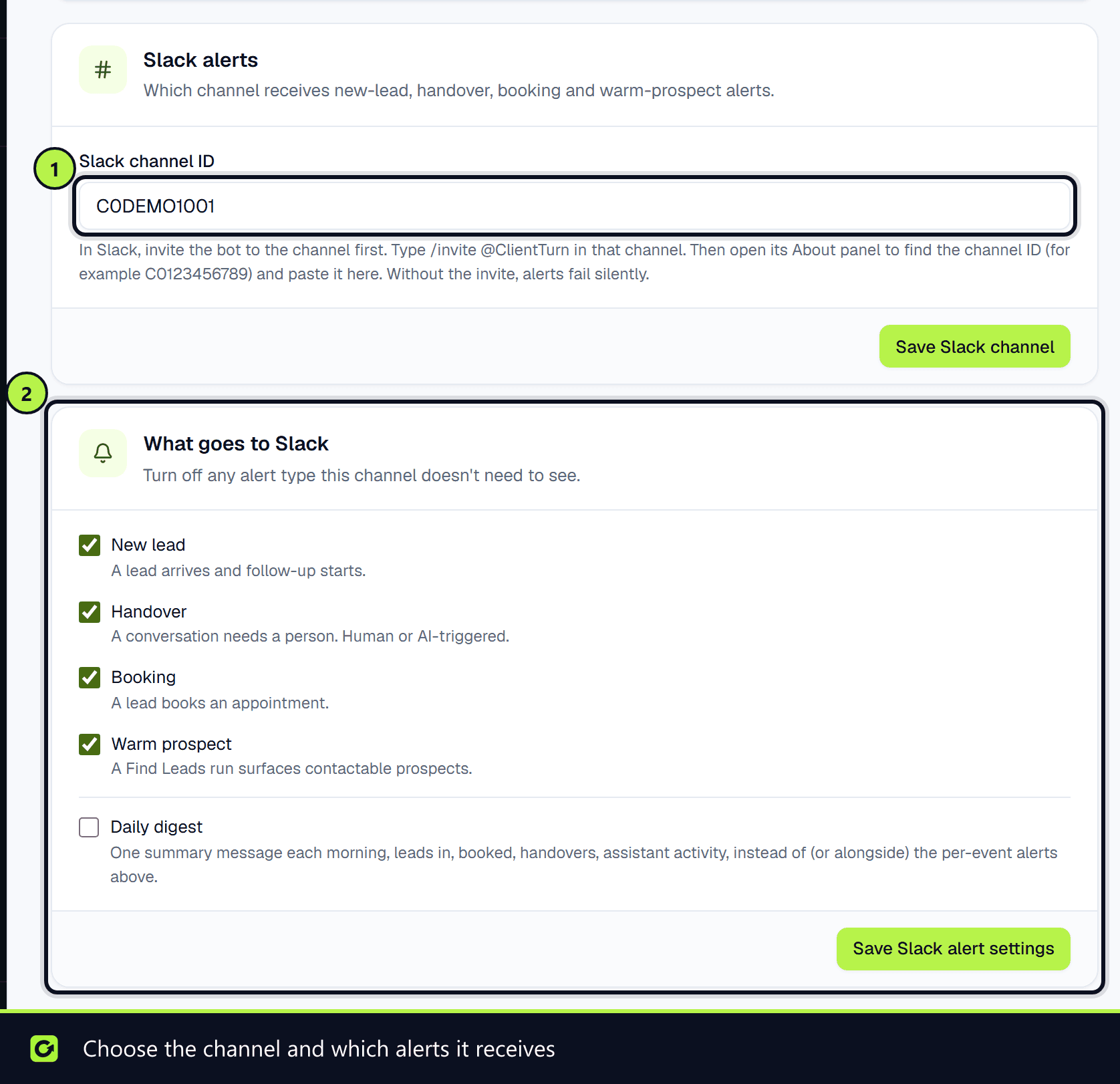
C0123456789. - Step 3: In ClientTurn, open Settings → Workspace. The Slack alerts card appears once Slack is connected. Paste the ID into Slack channel ID and save.
3. Choose what is posted
Under What goes to Slack on the same page, switch each alert on or off:
| Alert | Sent when |
|---|---|
| New lead | A lead arrives and follow-up starts |
| Handover | A conversation needs a person, whether a human or the assistant asked for it. Also sent when the assistant asks your team to confirm one thing in the background while it keeps the conversation |
| Booking | A lead books an appointment |
| Warm prospect | A Find Leads run surfaces contactable prospects |
| Daily digest | One summary each morning: leads in, bookings, handovers and assistant activity |
Choose Save Slack alert settings.
Checking where alerts go
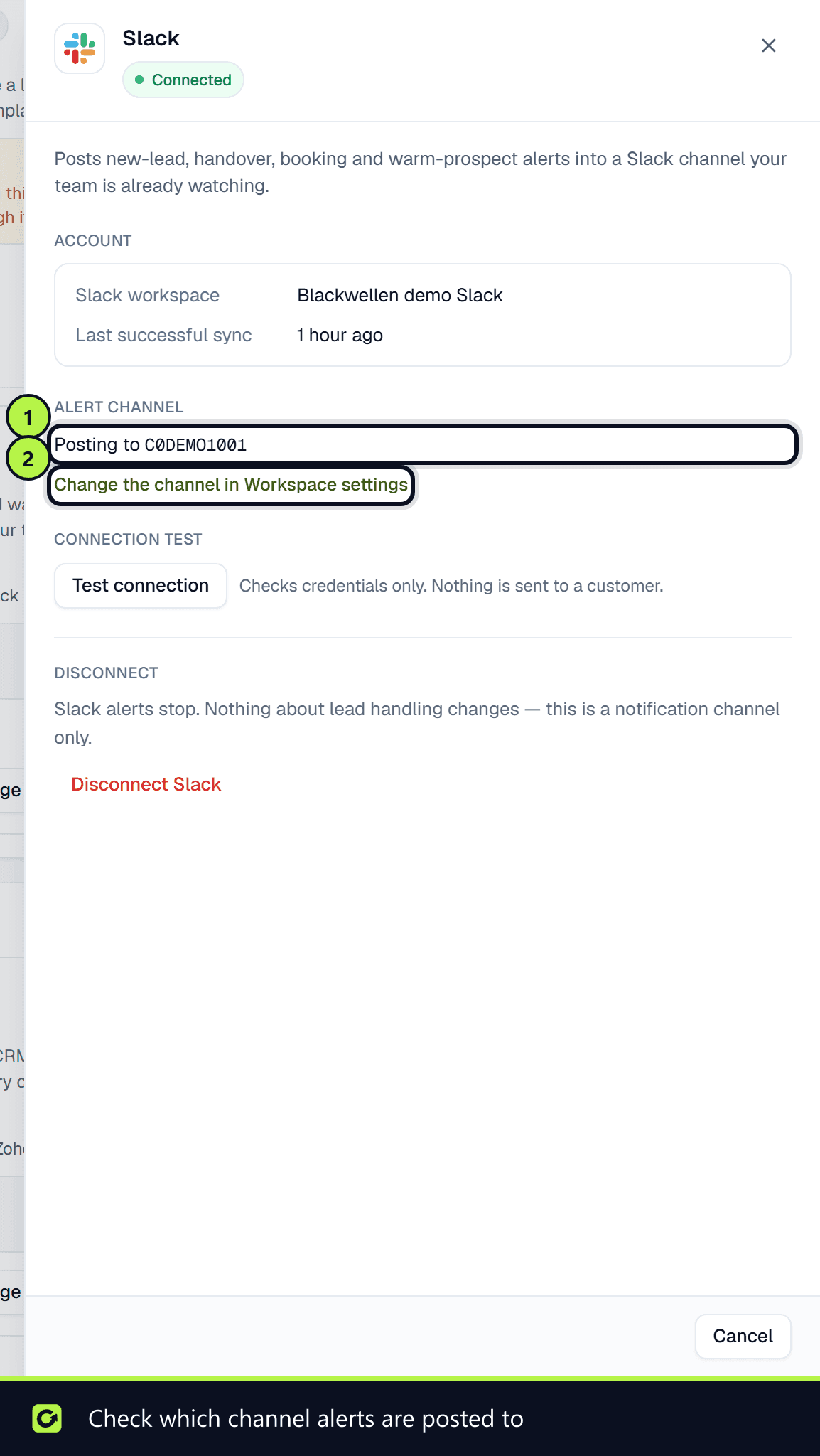
Open the Slack card's Manage panel in Settings → Connections. Under Alert channel it shows the channel ID alerts are posted to, or says no channel is chosen yet, in which case nothing is posted. The link beside it takes you to the Slack alerts card in Settings → Workspace to choose or change the channel.
Handover alerts include buttons so someone can acknowledge or resolve the handover from Slack.
Related
Screenshots
Still stuck?
Customers can raise a ticket from the help button inside the app. Not a customer yet? Talk to us.