
Integrations
Connecting Zoho CRM
Push qualified leads and bookings into your Zoho CRM as leads, in whichever Zoho data centre your organisation uses
1 min readUpdated 26 September 2026
Connect
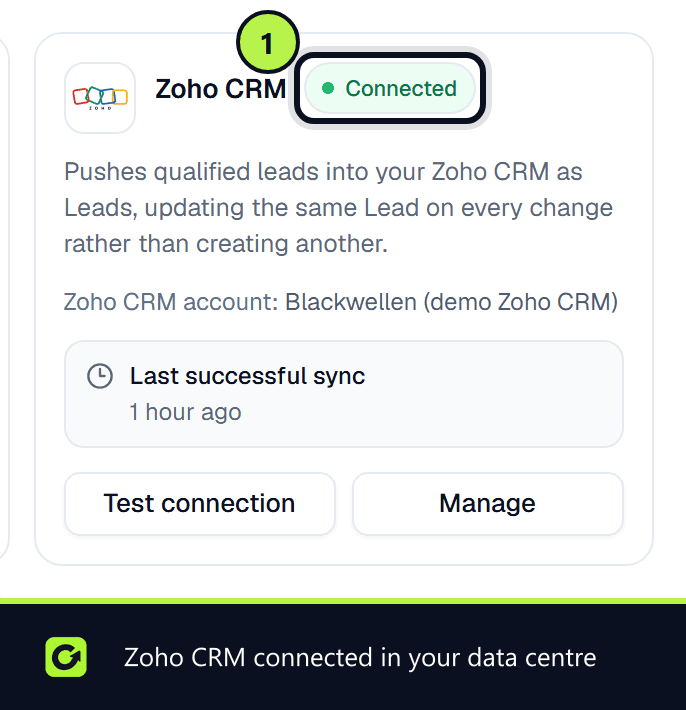
- Step 1: Open Settings → Connections, find Zoho CRM under CRM and choose Connect, then Connect again in the panel.
- Step 2: Sign in to Zoho and approve access. ClientTurn asks to create, read and update Leads. You are brought straight back; there is nothing to copy or paste.
Data centres
Zoho runs separate data centres (for example the US, EU, UK, India, Australia, Japan and Canada). Zoho tells ClientTurn which one your organisation lives in during sign-in, and every later sync uses that same region.
What gets pushed
A lead that reaches Qualified, Booked or Won is pushed to Zoho as a Lead. Pushing the same lead again updates that same Zoho record in place rather than creating a duplicate, which is why ClientTurn asks for the update permission.
Import Zoho leads (optional)
You can switch on Import contacts from Zoho CRM in Settings → Connections. New and changed Zoho Leads are added as imported leads, with no follow-up started. See Pulling leads from your CRM.
Related
Screenshots
Still stuck?
Customers can raise a ticket from the help button inside the app. Not a customer yet? Talk to us.