
Qualifying
Setting up qualification questions
Write your questions, choose an answer type, route each answer to continue, review or not qualified, and publish them so new leads are asked
3 min readUpdated 27 September 2026
Your questions live in Follow-Up, on the Qualification view. Owners and admins can edit them. Nothing is asked of a lead until you publish.
Add a question
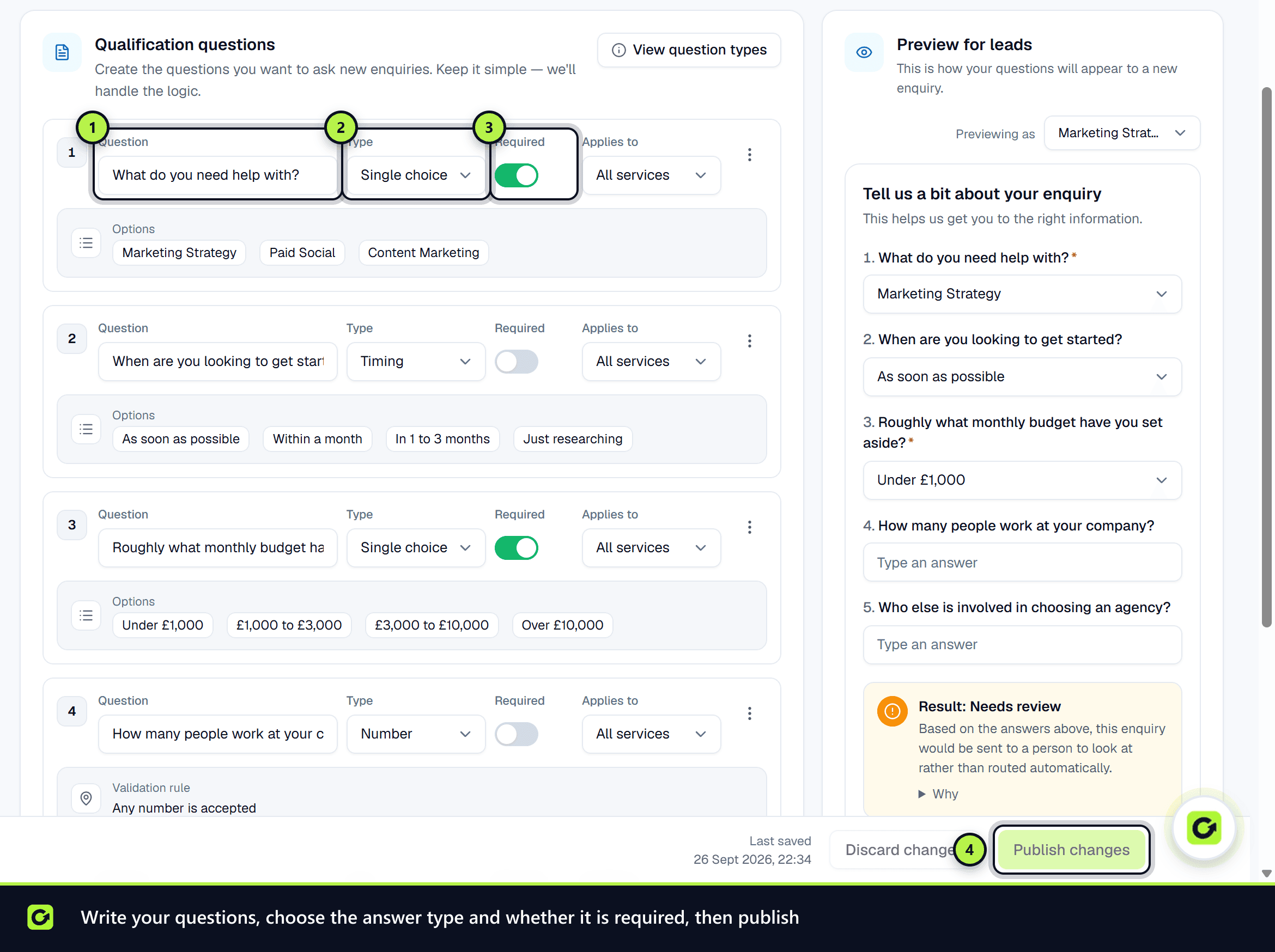
- Step 1: Open Follow-Up and switch to Qualification.
- Step 2: Choose Create your first qualification question, or Add another question if you already have some.
- Step 3: In What do you want to ask?, type the question as a lead would read it.
- Step 4: Choose the answer type (see below).
- Step 5: Choose which service it applies to, or All services.
- Step 6: Tick Required if a lead cannot be qualified without an answer.
- Step 7: Set its routing or validation rule (see below).
- Step 8: Choose Publish changes.
You can have up to 20 questions. The Preview for leads panel shows how your questions will appear to a new enquiry, and Service scope summary shows which services have questions.
Answer types
Every type is checked by fixed rules. An answer that cannot be matched goes to review. It is never guessed at.
| Type | How a reply is checked |
|---|---|
| Yes / No | Matched against yes and no. Anything else goes to review |
| Single choice | Must match one of the options you set |
| Timing | A choice list for how soon the work is needed |
| Number | A number, which you can give a minimum and a maximum |
| Postcode | A UK postcode, which you can check against a list of prefixes |
| Free text | Recorded for a person to read. Nothing is decided from it |
Choose View question types for the same list in the product.
Routing: where each answer goes
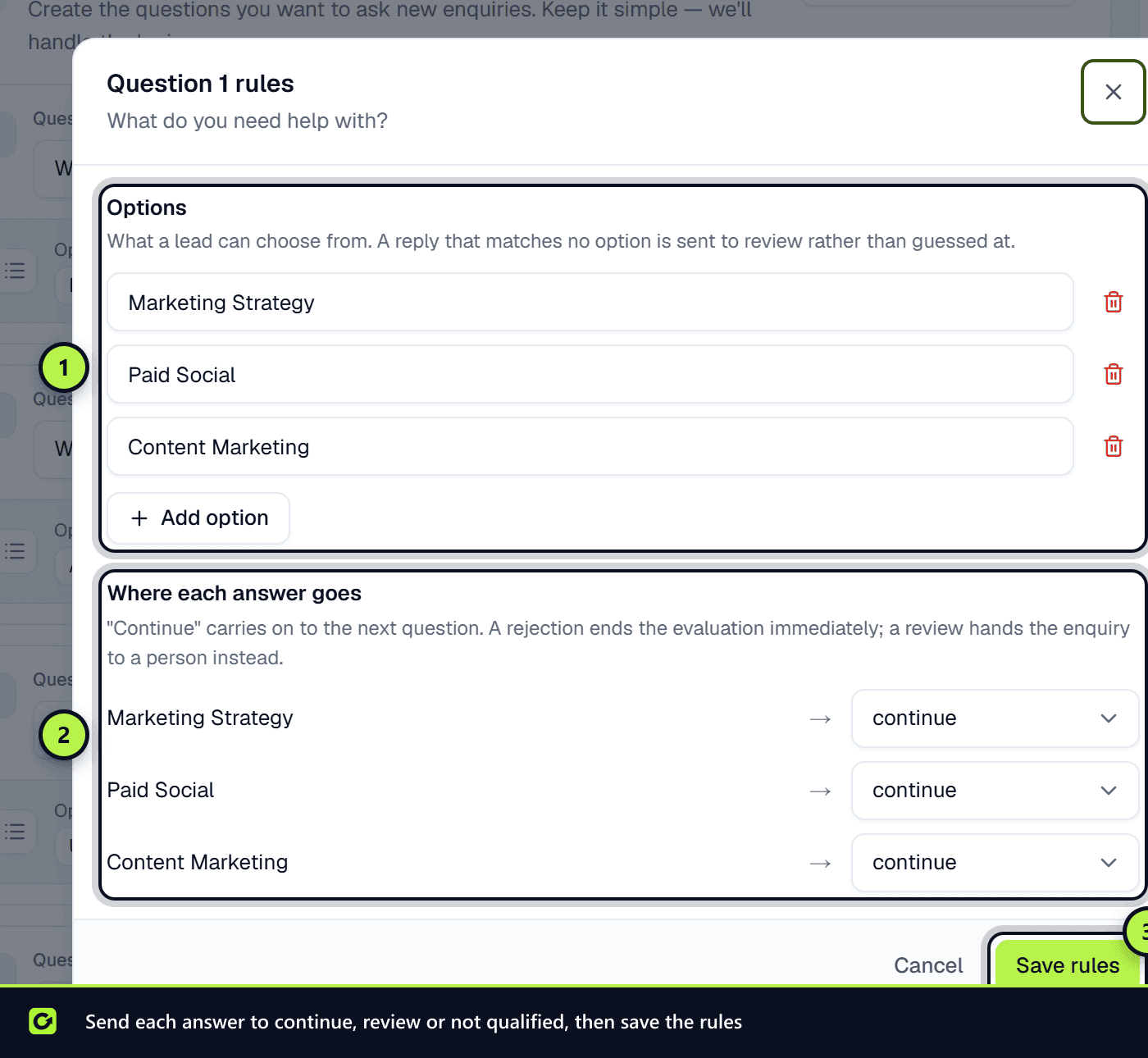
Open a question's Options, Routing rule or Validation rule to set what each answer does, then choose Save rules:
- Yes / No, Single choice and Timing: set the options (use Add option), then send each answer to continue (carry on to the next question), review (hand the enquiry to a person) or not qualified (end qualification straight away).
- Postcode: list the Allowed postcode prefixes, separated by commas, for example
BH1, BH2. A postcode outside the list is not qualified. Leave it empty to accept any postcode. - Number: set a Minimum accepted and a Maximum accepted. An answer outside the range is not qualified. Leave either empty for no limit.
- Free text: there is nothing to route.
Drafts and publishing
Your edits are a draft until you choose Publish changes. Discard changes throws your edits away and goes back to the version currently running.
If a question has already been answered by leads, you cannot delete it: publishing is refused and you are asked to Switch off the question instead, so the existing answers stay readable. Switch on brings it back.
Tips for good questions
- Keep it to a few questions. ClientTurn asks only what it needs and stops once it knows enough. See How qualification works.
- Mark a question Required only if you truly cannot proceed without it. Required questions are always asked, whatever the qualification depth.
- Prefer choices over free text. Free text can only be read by a person.
- Use review rather than not qualified when you would rather check a borderline answer yourself.
Related
- How qualification works
- Lead scoring explained
- Workspace settings, for your services
Screenshots
Still stuck?
Customers can raise a ticket from the help button inside the app. Not a customer yet? Talk to us.