
Reactivation
WhatsApp templates for reactivation
Why WhatsApp reactivation needs a template approved by Meta, how templates are synced into ClientTurn, and how to choose one and fill its variables for a campaign
2 min readUpdated 27 September 2026
WhatsApp only allows a business to send free-form messages within 24 hours of the person's last message to it. Reactivation is, by definition, to people who have not messaged you recently. So a WhatsApp reactivation message is almost always sent as a template that Meta has approved in advance.
WhatsApp is a paid add-on on Growth and above, paid per message in prepaid WhatsApp tokens. A reactivation message is usually a marketing template, which uses 5 tokens. It also needs a connected WhatsApp sender in Settings → Connections.
Get templates into ClientTurn
- Step 1: Create and submit your templates with your WhatsApp provider (Twilio or Meta) and wait for Meta to approve them. ClientTurn does not create templates.
- Step 2: Open Settings → Connections → WhatsApp templates.
- Step 3: Choose Sync to fetch them straight away. They are also synced once a day.
Each template shows its status. Only approved templates can be chosen. If a template is paused or rejected later, ClientTurn stops using it.
Choose a template for a campaign
- Step 1: In the campaign builder, choose WhatsApp as the channel on the Message & Timing step.
- Step 2: Write your message. It is only sent as written to someone who has messaged you in the last 24 hours.
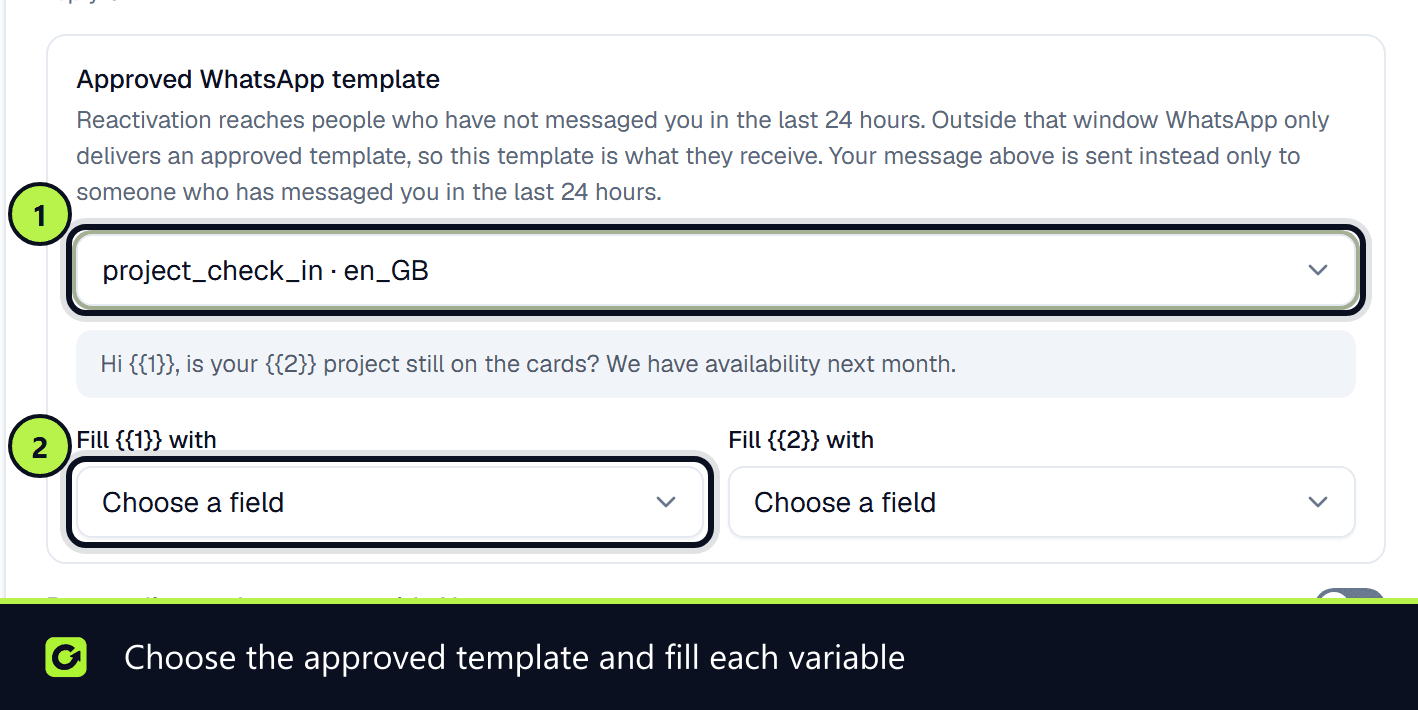
- Step 3: Under Approved WhatsApp template, choose the template. This is what everyone outside the 24-hour window receives.
- Step 4: For each variable in the template, such as
{{1}}, choose which field fills it, for example first name or business name. - Step 5: Continue to Review & Launch. The summary shows the WhatsApp template being used.
You cannot launch until every variable is mapped to a field. If a lead has no value for a mapped field, the template is not sent to them, rather than sent with a gap where a name should be.
The template is checked again when it is sent
Just before each message, ClientTurn re-reads the template. If it has been paused or rejected since you launched, or it does not belong to the WhatsApp sender this workspace uses, the message is not sent, and the reason is recorded on it.
WhatsApp opt-in still applies
Meta requires an explicit opt-in naming your business before you start a WhatsApp conversation. A template does not replace that. For someone who has not messaged you in the last 24 hours, a WhatsApp reactivation message is only sent if a WhatsApp opt-in is on record for them. Otherwise it is held for a person to decide.
Follow-up sequences use templates too
The same templates can be set on WhatsApp steps in your follow-up sequences, under Follow-up steps on WhatsApp in Settings → Connections → WhatsApp templates. A step with no template is held for a person once the window has closed. See Connections settings.
Related
Screenshots
Still stuck?
Customers can raise a ticket from the help button inside the app. Not a customer yet? Talk to us.