
Settings
Business Profile settings
What ClientTurn knows about your business, how verified facts reach the assistant's offer card, and how to set up ideal customer profiles, conversion goals and outreach guidance
3 min readUpdated 26 September 2026
Settings → Business Profile holds what ClientTurn believes about your business, who you want to reach, and what counts as success. The conversation assistant, Find Leads and your agents all work from it. Owners and admins can edit it.
What we know about your business
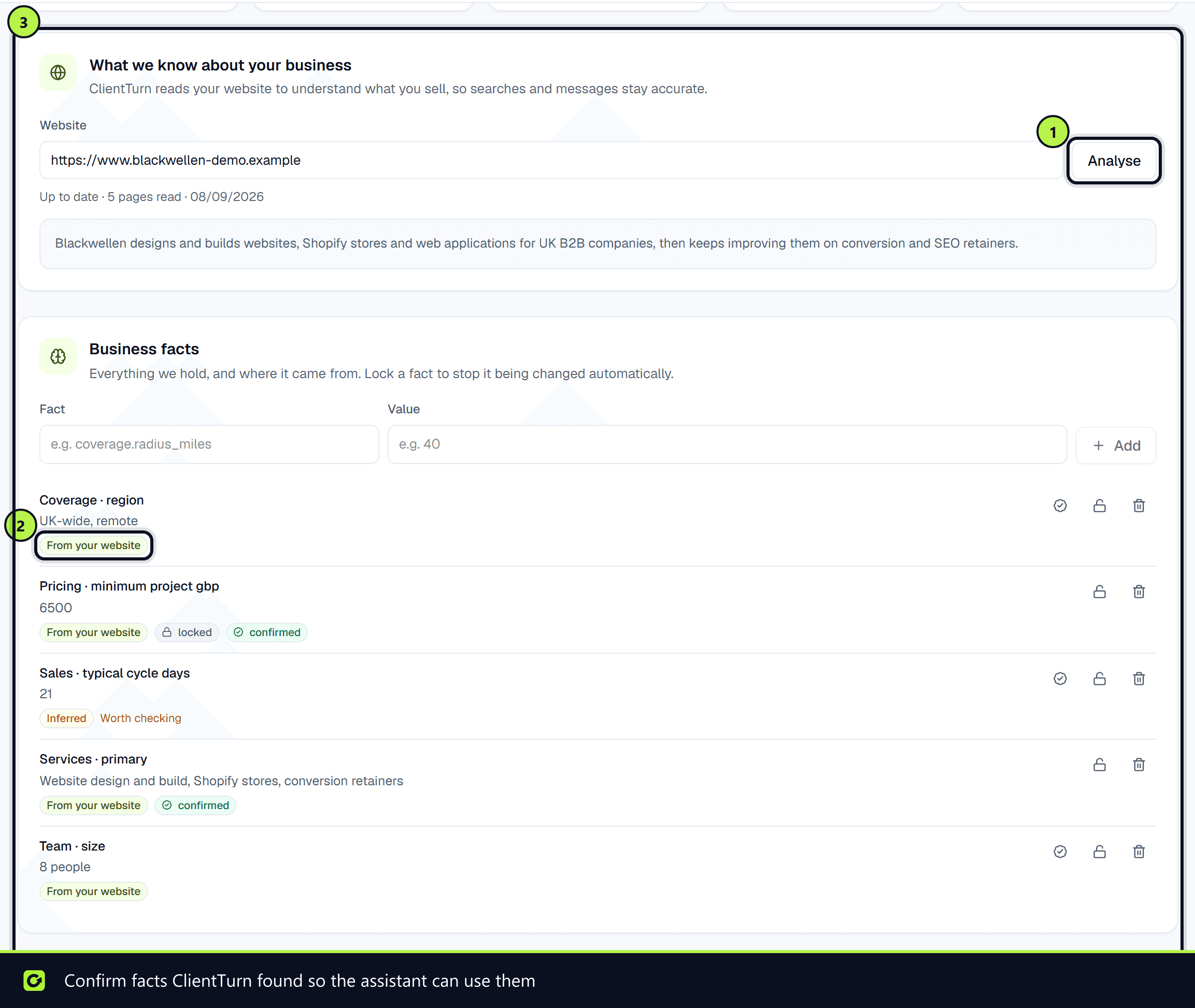
Enter your Website and choose Analyse. ClientTurn reads your site to understand what you sell. It shows how many pages it read, when, and a short summary.
Business facts
Business facts lists everything ClientTurn holds about your business and where each fact came from:
| Badge | Where the fact came from |
|---|---|
| You told us | Typed in by your team |
| From your website | Read from your site |
| From a connection | From a connected service |
| Learned from results | From your own results |
| Inferred | Worked out by ClientTurn. Marked Worth checking |
To add a fact yourself, enter a Fact and a Value and choose Add. Anything you type is treated as verified and locked.
For each fact you can:
- Confirm this is right, which marks a fact ClientTurn found as verified.
- Lock this fact, which stops it being changed automatically. Allow automatic updates unlocks it.
How facts reach the assistant
Before it writes, the assistant is given a short offer card: a summary of what you sell and how you sound. Only trusted information goes on it:
- Facts only if a person confirmed or locked them, or your team typed them in. A fact read from your website or inferred by ClientTurn stays off the card until someone confirms it.
- Facts past their valid-until date are left out.
- Anything that looks like internal commercial data, such as costs, margins, price bands or deal values, is always left out.
- Services by name and description. A price reaches the card only as published price wording, never from a service's Average value.
- Your Outreach guidance: value proposition, key messages and proof points.
The card has a fixed size. If there is too much, whole items are dropped, lowest priority first, and never cut off part-way through a sentence.
The assistant never quotes a price you have not published, and never promises a time or an area. See Setting up AI agents.
Outreach guidance
Outreach guidance sets how ClientTurn represents your business:
- Tone: how your messages should sound.
- Value proposition: the one sentence that explains why someone should care.
- Key messages: the points worth making.
- Proof points: facts you can stand behind if challenged.
- Call to action: what you want the reader to do next.
- Avoid: anything that should never appear in a message.
- Claims we cannot make: guarantees, prices or timescales you cannot promise. Generated copy will not use them.
Choose Save guidance.
Ideal customer profiles
Describe who you sell to. Find Leads cannot score anyone without at least one profile. Choose New profile and fill in Name, Description, Industries, Locations, Smallest company, Largest company and Decision makers (the job titles worth reaching).
Conversion goals
Say what success looks like, so every campaign and agent knows what to ask for. Choose New goal, then pick What should happen?: Book an appointment, Book a site visit, Book a demo, Request a quote, Get a phone call, Sign up, Buy, Hand over to a person, or Something else. Add Where does it go?, the https:// address the lead is sent to.
What we have learned
Patterns from your own results. A finding only appears once there is enough data for it to mean something.
Selling: direct close
At the bottom of the page you can let the assistant send an approved checkout link when a lead is ready to buy. See Direct close with checkout links.
Related
Screenshots
Still stuck?
Customers can raise a ticket from the help button inside the app. Not a customer yet? Talk to us.