
Settings
Team settings
Invite people, choose their role and permissions, resend or revoke invitations, remove someone and hand their work on, transfer ownership, and how seats are counted
3 min readUpdated 28 September 2026
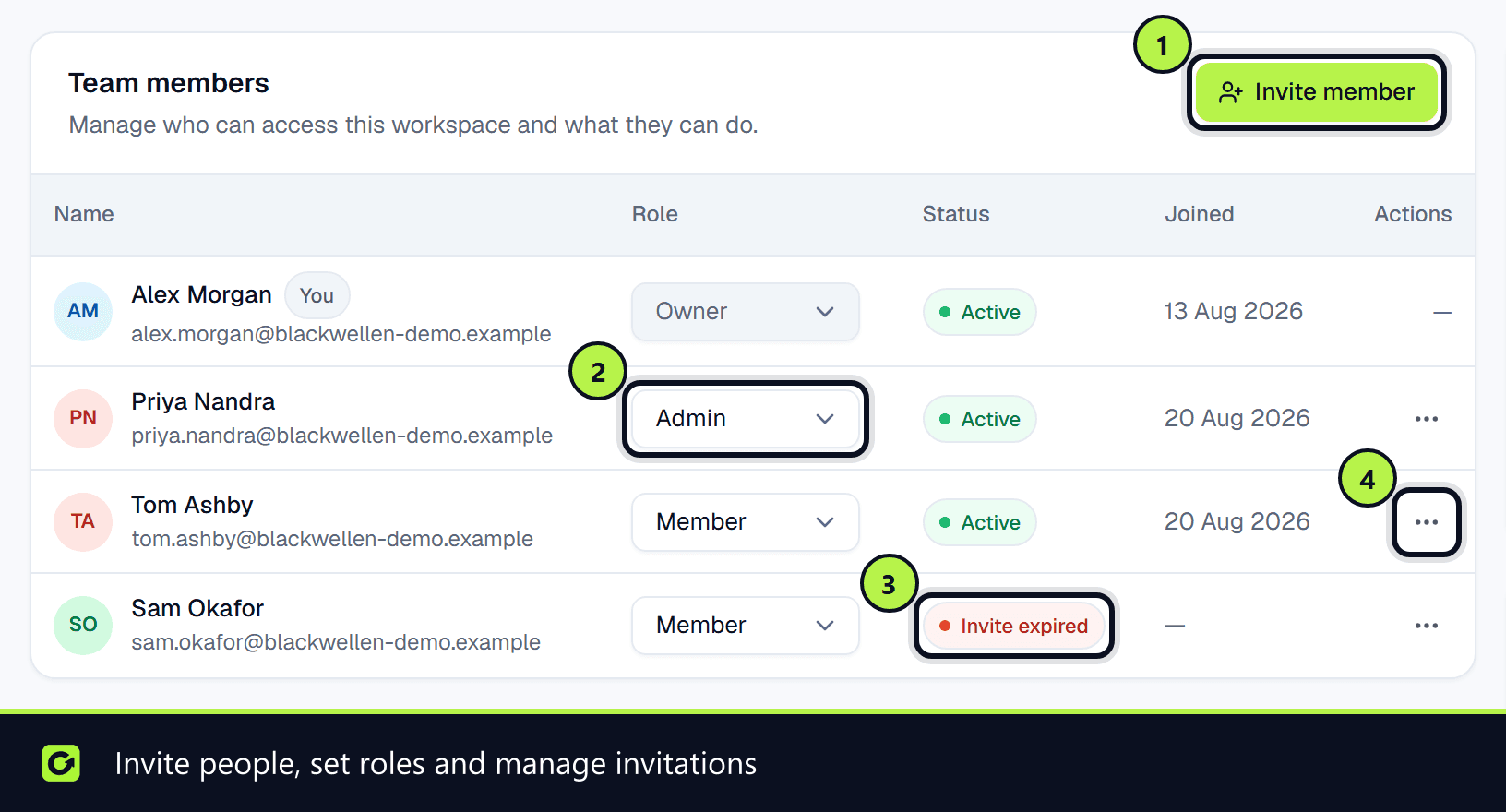
Settings → Team lists everyone with access to the workspace and what they can do.
Roles
| Role | What they can do |
|---|---|
| Owner | Full access, including billing, exporting or deleting the workspace, and managing admins. Can transfer ownership |
| Admin | Changes settings and manages members and viewers. No billing, workspace export or deletion, and cannot manage other admins |
| Member | Works leads, conversations and campaigns. Cannot change workspace settings |
| Viewer | Read-only access to leads and reporting |
There is always exactly one owner. Ownership is never assigned; it only moves when the owner transfers it.
Permissions
Under Permissions, a table shows what each role can do by default. For larger teams, three things can be allowed or withheld per person on top of their role:
| Permission | What it covers | Owner | Admin | Member | Viewer |
|---|---|---|---|---|---|
| Send outbound | Send messages and booking links, launch campaigns, send quotes and invoices, and request AI calls | Always | Yes, adjustable | Yes, adjustable | Never |
| Manage integrations | Connect, disconnect and configure CRMs, calendars, lead sources and channels | Always | Yes, adjustable | No, adjustable | Never |
| Manage billing | Change the plan, buy credits, minutes and numbers, and open the billing portal | Always | No, adjustable | Never | Never |
For each person, choose Role default, Allowed or Not allowed. The owner always has everything, a viewer is always read-only, and billing can be given to an admin but never to a member. Changing someone's role puts their permissions back to the role defaults. Every change is checked on the server and recorded in the audit log.
Invite someone
- Step 1: Choose Invite member.
- Step 2: Enter their Email address and choose a Role: Admin, Member or Viewer.
- Step 3: Send the invitation.
They get an email and appear in the table straight away with the status Invited. Someone who already has a ClientTurn account accepts by signing in with that email address.
Invitations expire after 14 days. An expired one shows Invite expired. Use Resend invitation from the row's menu to give them another 14 days.
Owners and admins can invite members and viewers. Only the owner can invite an admin or make someone an admin, and once someone is an admin, only the owner can change their role or remove them.
Seats
Your plan sets how many people can have access: 1 on Starter (and during the trial), 3 on Growth and 10 on Pro. Active people, suspended people and unexpired invitations each use a seat. An expired invitation does not.
When every seat is in use, new invitations are refused. Upgrade, remove someone, or revoke an invitation to free a seat. The Team overview panel shows seats in use against your limit.
Change someone's role
Use the Role menu on their row. Nobody can change their own role, and only the owner can change an admin's role.
Remove someone
- Step 1: From their row's menu, choose Remove member.
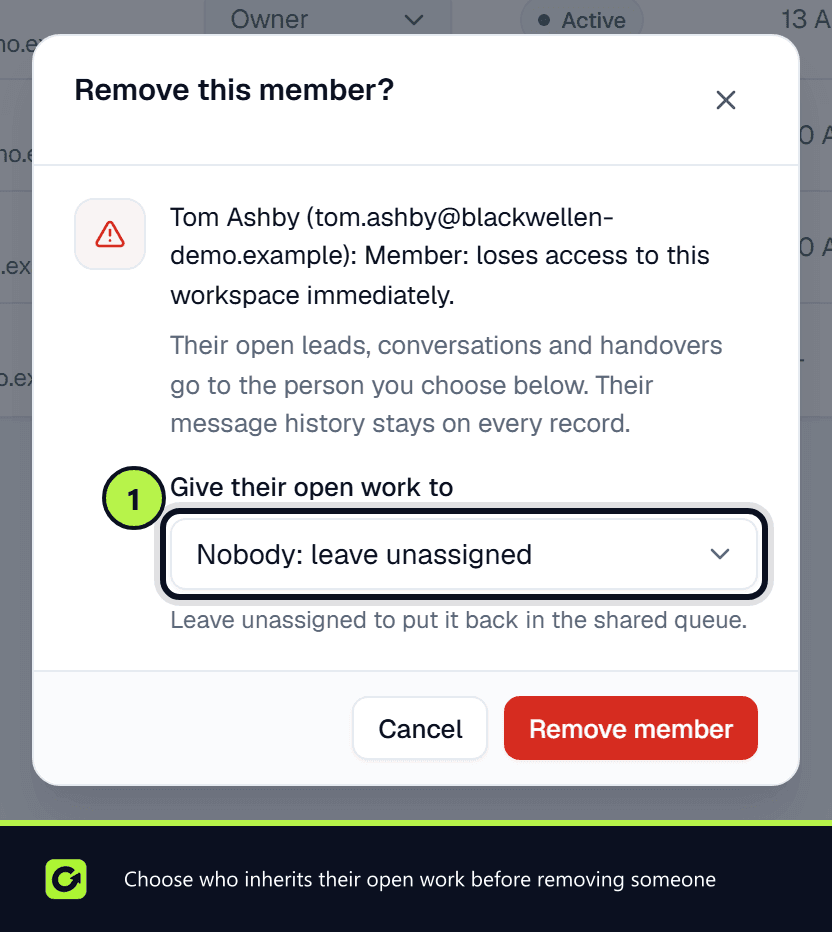
- Step 2: Under Give their open work to, choose who takes over their open leads, conversations and handovers, or Nobody — leave unassigned to put it back in the shared queue. It can only go to an active person who is not a viewer.
- Step 3: Confirm with Remove member.
Their seat is freed straight away, and their message history stays on every record. You can invite them again later. Removed in last 30 days shows how many people have been removed recently.
The owner cannot be removed (transfer ownership first), nobody can remove themselves, and only the owner can remove an admin.
For a pending invitation, use Revoke invitation instead.
Transfer ownership
Only the owner can do this, and only to someone who has accepted their invitation and is not a viewer.
- Step 1: From their row's menu, choose Make owner.
- Step 2: Type their email address to confirm.
- Step 3: Choose Transfer ownership.
You become an admin. Only the new owner can give ownership back.
Related
Screenshots
Still stuck?
Customers can raise a ticket from the help button inside the app. Not a customer yet? Talk to us.