
AI agents
Setting up an agent
Create an agent step by step, choose its sources, limits, schedule and approval level, then start it when you are ready
5 min readUpdated 28 September 2026
Before you start
- You need to be an owner or admin.
- For a sourcing or combined agent, have an approved Find Leads search plan. A plan is approved when you start a sourcing run from it or schedule it. See Discovering companies with Find Leads.
Create the agent
- Step 1: Open Agents and choose New agent.
- Step 2: Role — choose Sourcing agent, Closing agent, Re-engagement agent or Combined agent. See What are AI agents?
- Step 3: Sources — under Where should it look?, tick the sources it may use. Only official APIs, licensed data and accounts you own are offered, and a source that needs connecting first is marked. For a sourcing agent:
- choose the Approved search plan (or No plan yet — save as draft);
- choose whether to Find a work email address (addresses are verified before use). Agents never collect phone numbers: texts and calls only go to a number the person gave you themselves.
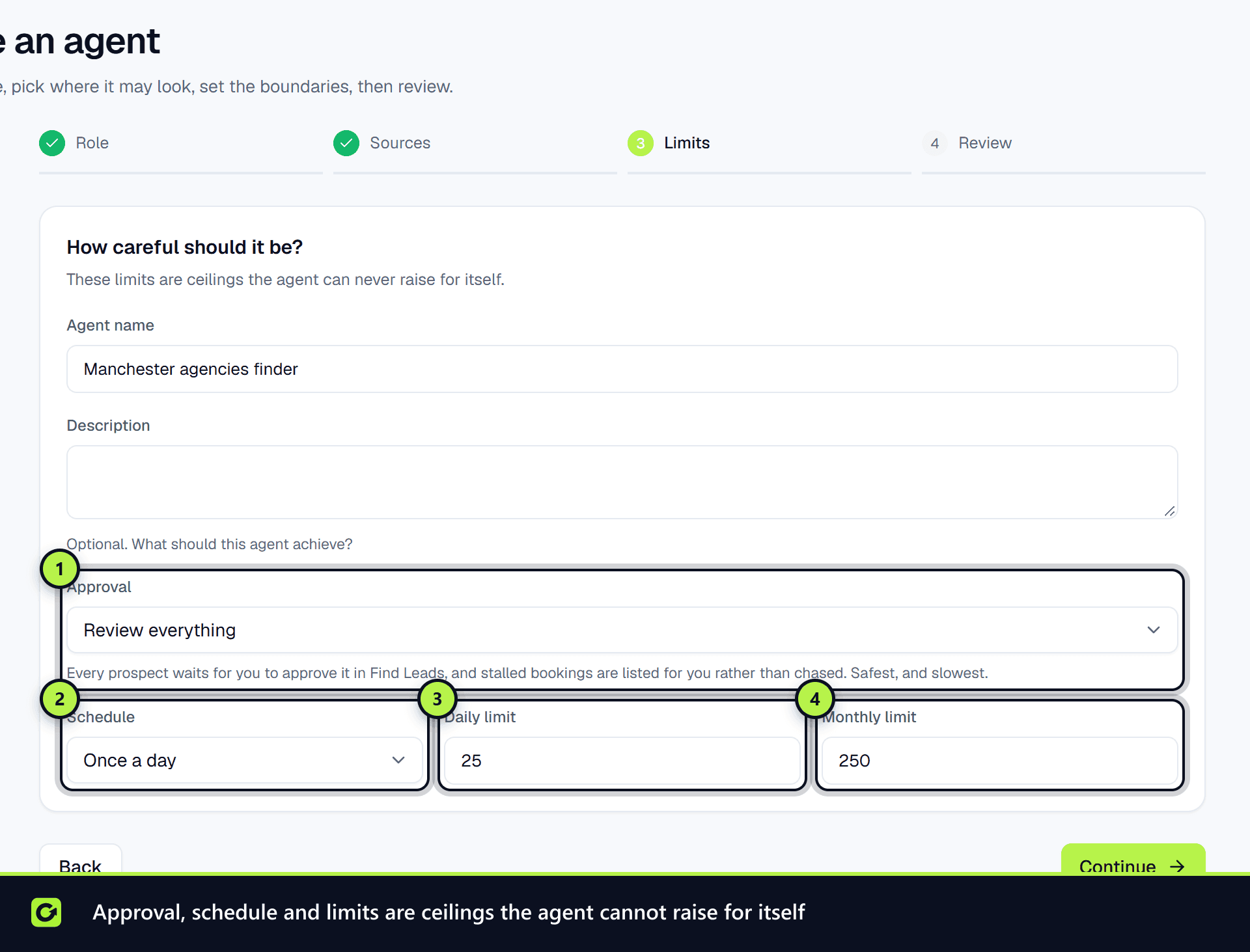
- Step 4: Limits — under How careful should it be?, give it an Agent name and optional Description, then set:
- What it sells: the whole catalogue, or chosen products and services (choosing a product covers every priced item under it). The agent only offers what is in its target, and recommends the best fit for the lead from those by fixed rules. You can change it later in the agent's Settings tab. With an empty catalogue, the agent sells whatever the conversation is about;
- Approval: Review everything, Review new companies only, or Run automatically;
- Schedule: Only when I run it, Every hour, Once a day or Once a week;
- Daily limit and Monthly limit: the most it may process. The daily limit must be at least 1, and the monthly limit cannot be lower than the daily one.
- Phone leads with AI (closing and combined agents only, off unless you tick it): see AI phone calls.
- Step 5: Review — check the summary and choose Create agent.
The agent is created as a Draft and does nothing until you start it.
Start it
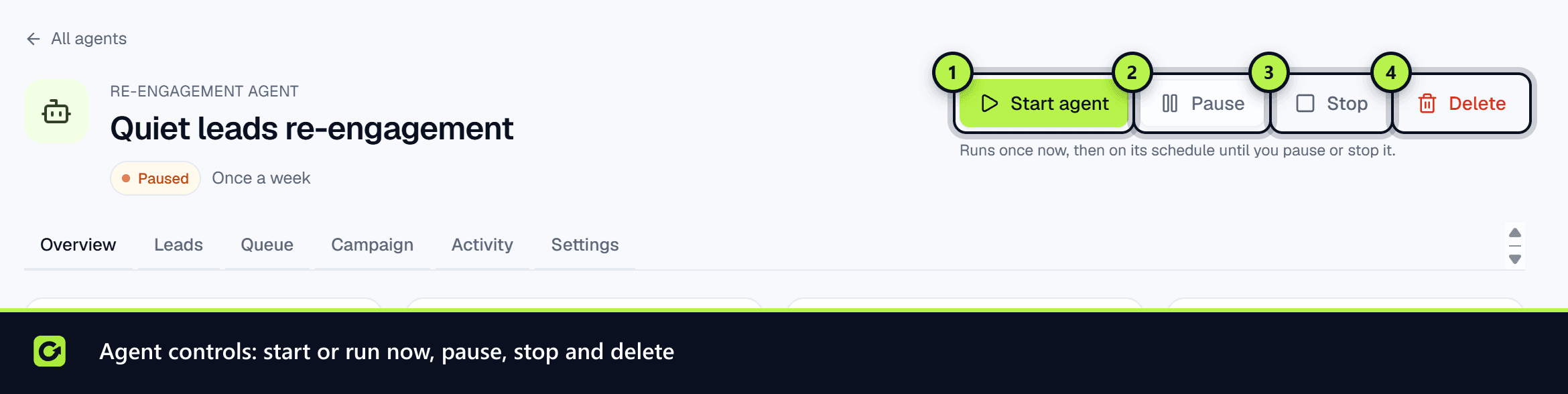
Open the agent and choose Start agent. It runs straight away and then on its schedule. An agent set to Only when I run it runs once each time you choose Run now.
AI phone calls
A Closing agent or Combined agent can ask the AI voice agent to phone its leads. It is off unless you switch on Phone leads with AI, in the Limits step or later in the agent's Settings tab under AI phone calls.
- Who it calls. A closing agent calls qualified leads that have gone quiet short of their goal (a meeting, or a sale or sign-up). A combined agent also calls new leads from the last 7 days to qualify them. Sourcing and re-engagement agents never phone anyone.
- Only callable leads. Each call goes through the same checks as Call with AI: the lead gave you the number and asked or agreed to be called, TPS and CTPS, their calling hours, your attempt limits, opt-outs, one call at a time, and your voice minutes. See Calls and consent.
- Once per purpose. The agent asks for a lead's first call for each purpose. Retries after no answer follow your Voice attempt settings.
- Your approval setting applies. An agent set to Run automatically places its calls itself. On Review everything or Review new companies only, each call waits under Waiting for you on the agent's Queue tab. Anyone with the member role or above can choose Approve call or Decline. An approved call still goes through every check above. A declined call is not placed, and the lead goes back to your normal follow-up.
- No double contact. A lead the agent is calling, or has a call waiting for approval, gets no text follow-up from the same run: the call is the touch. If the call is cancelled, refused or declined, normal follow-up resumes on the next run.
- Daily limit. Calls per day, at most (20 unless you change it, up to 100). Calls waiting for approval count toward it.
- Voice must be ready. If your workspace cannot place calls yet, the option is greyed out with the reason, and owners and admins get a link to Settings → Voice.
- Phone leads permission. The agent also needs Phone leads switched on in Settings → AI & selling → What the AI may do. Switching the agent on does not change that setting. If it is off, the agent says it will not call yet, and an owner or admin can choose Allow the AI to phone leads. That change applies to the whole workspace and is recorded in your audit log.
Every call the agent asks for, and every lead it could not call, is on its Activity tab. The agent card and Overview show whether AI calls are on and how many it asked for in the last 7 days.
The agent page
Each agent has tabs for what it has done: Overview, Leads, Queue, Sources, Campaign, Activity and Settings. Booking and re-engagement agents do not have Sources.
- Queue lists each piece of work (find companies, find email, verify email, waiting for review, move to Leads, and so on) with its status and, if blocked, why.
- Activity is the timeline of every run, with warnings and errors.
Controls
| Control | What it does |
|---|---|
| Start agent / Run now | Starts a draft, paused or stopped agent; runs an active one immediately |
| Pause | Stops it running on schedule, keeping its setup and queue. Start agent resumes it |
| Stop | Stops it after the work in hand. Found prospects and history are kept. It will not resume on its schedule until started again |
| Delete | Removes the agent. See Agents run 24/7 |
Pause and stop are never held for approval, even when requested by an AI assistant.
Related
Screenshots
Still stuck?
Customers can raise a ticket from the help button inside the app. Not a customer yet? Talk to us.