
AI agents
The conversation assistant
How the assistant that answers your leads is set up, what the AI decides and what your rules decide, and how to review its work
4 min readUpdated 27 September 2026
The conversation assistant reads replies from your leads and answers them: it qualifies them against your questions, answers questions about your services from what you have configured, offers booking, and hands anything it should not handle to your team. It is off by default in every workspace.
Turn it on
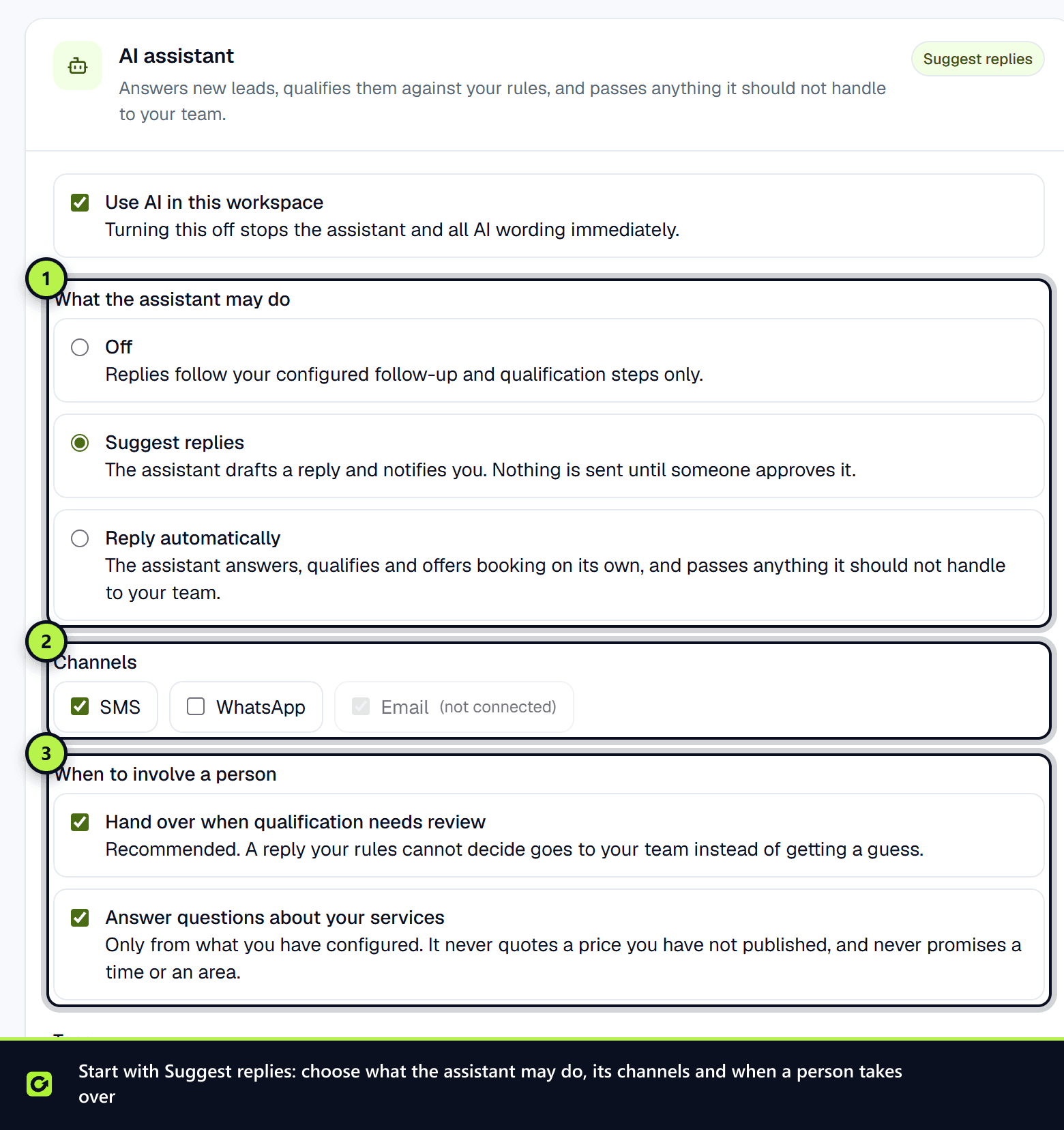
- Step 1: Open Settings → Workspace and find the AI assistant card. Owners and admins can change it.
- Step 2: Make sure Use AI in this workspace is ticked. Unticking it stops the assistant and all AI wording immediately.
- Step 3: Under What the assistant may do, choose one:
- Off — replies follow your configured follow-up and qualification steps only.
- Suggest replies — the assistant drafts a reply and notifies you. Nothing is sent until someone approves it.
- Reply automatically — the assistant answers, qualifies and books on its own. It asks your team for help in the background when it needs a fact confirmed, and passes the conversation over only as a last resort. See The handoff brief.
- Step 4: Under Channels, tick where it may reply: SMS, WhatsApp or Email. A channel that is not connected is marked (not connected).
- Step 5: Under When to involve a person:
- Hand over when qualification needs review (off by default): when your rules mark a lead Review, the assistant flags it for your team and keeps the conversation going, without offering a booking until the review is cleared. It never guesses the result. Tick this to pass these conversations to your team instead.
- Answer questions about your services: only from what you have configured. It never quotes a price you have not published, and never promises a time or an area.
- Step 6: Choose a Tone: professional, friendly or direct. It stays concise on SMS and WhatsApp either way.
- Step 7: Optionally add an Extra handover rule, such as a service or a job size that should always go to a person.
- Step 8: Choose Save assistant settings.
The same automation level also appears as AI strategy in Settings → AI & selling, alongside research depth and how readily it hands over. See AI guides and best practice.
If the AI assistant is not on your plan, the card says so and follow-up and qualification keep running on your rules.
What the AI decides, and what your rules decide
The AI understands language and proposes. ClientTurn's rules decide, authorise and act.
| The AI does | Your rules and ClientTurn decide |
|---|---|
| Interprets what a lead means | Whether the assistant may run at all |
| Drafts the wording | Whether a message may be sent, and when |
| Suggests a value for one of your qualification questions | Whether that value is valid, and the qualification result |
| Chooses among a fixed set of next steps | Whether that step is carried out |
Some messages never reach the AI at all. "Stop", "wrong number", a complaint or legal threat, an emergency or "can I speak to a person?" is recognised first and handled by fixed rules: an opt-out suppresses and stops everything queued; the others hand over to your team.
"Are you a bot?" is answered honestly: the assistant says it is your business's AI assistant and that a person can join if the lead would like, then carries on. It hands over only if they then ask for a person, and it never claims or implies to be human.
When a reply is unclear, or matches none of your answer options, the assistant asks again in other words, up to twice, before passing the conversation on. See The handoff brief for every reason a person gets involved.
What it will never say
Every draft is checked before it is sent. A draft is rejected and rewritten, up to three attempts, and otherwise handed to a person, if it:
- mentions an amount of money you have not published;
- offers a specific time that did not come from your calendar;
- says someone is booked when the booking did not succeed;
- confirms you cover an area without a match against your service area;
- promises a response time, includes a link other than your booking link, or claims to be human;
- uses a phrase you have forbidden in your brand settings.
Quiet hours, suppression and takeovers apply to the assistant exactly as to any other message.
Review what it did
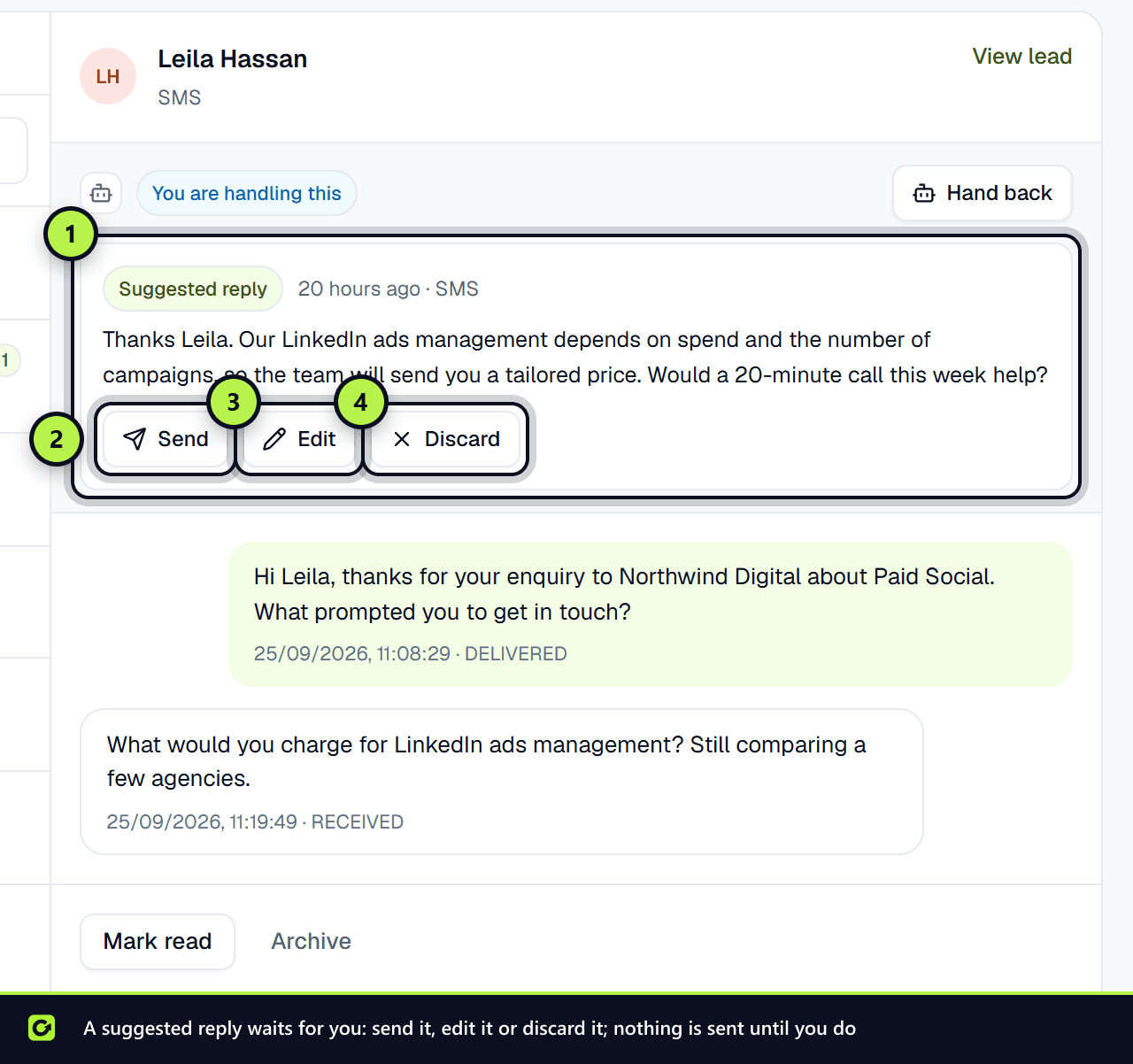
- Suggested replies, handovers and the assistant's recent actions appear in Inbox, above the conversation. You can edit, send or discard a suggested reply. A discarded draft is kept, so you can judge over time how much to trust it.
- Each lead's AI tab shows what the assistant did on that lead.
- Take over on the lead page stops the assistant for that lead; only a person can hand it back.
Related
Screenshots
Still stuck?
Customers can raise a ticket from the help button inside the app. Not a customer yet? Talk to us.