
Finding leads
Adding a lead manually
Use the Add lead wizard to record a phone call, a referral or a walk-in enquiry, with its source and permission recorded properly
2 min readUpdated 27 September 2026
Use Add lead when someone contacts you outside your connected sources: a phone call, an email to your inbox, an event, a referral. The wizard records where the enquiry came from and what permission you have, then runs the same intake checks as every other source.
Before you start
You need a member role or above. Adding a new service from inside the wizard needs an owner or admin.
Add a lead
- Step 1: Open Leads and choose Add lead.
- Step 2: Contact — enter the person's name, company, and at least one of email, mobile or telephone. Postcode and address are optional. ClientTurn checks straight away for an existing lead or prospect with the same details and shows any match. If it is a different person, choose Continue anyway.
- Step 3: Enquiry — choose the Service, describe what they need under Enquiry / interest, and set the Source (Manual, Phone call, Walk-in, Referral, Event, Import, Pipedrive or Other) with any Source detail. Estimated value is optional and is an estimate, not revenue. Choose a Conversion goal such as a demo, a call or a quote. Notes are internal and never sent to the lead.
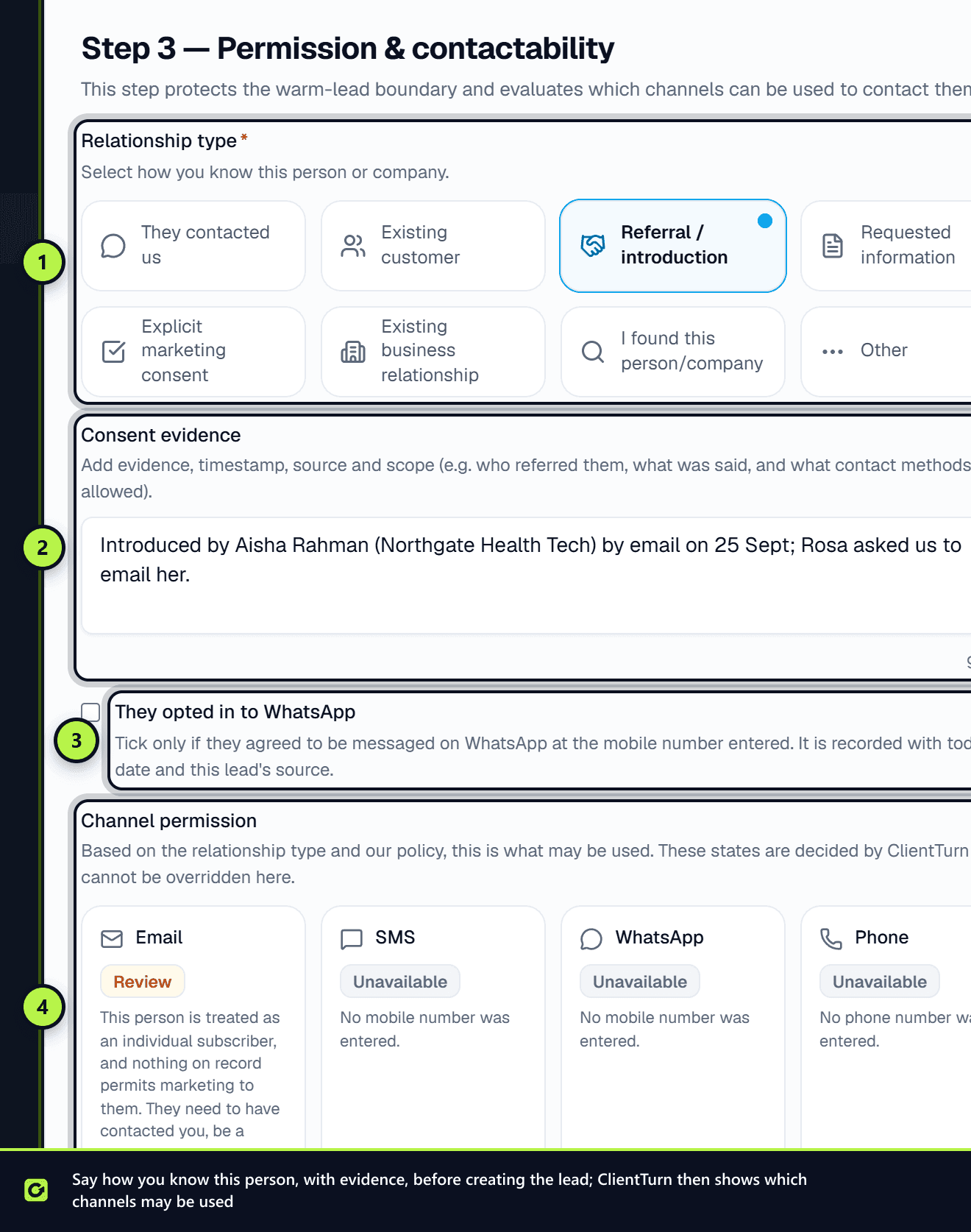
- Step 4: Permission & contactability — choose the Relationship type (how you know this person) and add Consent evidence where it matters: who referred them, what was said, and which contact methods are allowed. For Referral / introduction, Requested information, Explicit marketing consent, Existing business relationship and Other, the evidence must be at least 20 characters, enough to name a person and a date. Tick They opted in to WhatsApp only if they agreed to be messaged on WhatsApp at the mobile number entered. ClientTurn shows, per channel, whether this person can be contacted and why.
- Step 5: Route & Start — choose the Assignee and Initial status, optionally flag the lead for attention with a reason, and decide whether to switch on Start follow-up for this lead.
- Step 6: Choose Create lead. The lead opens in its drawer.
If you found this person yourself
If you choose I found this person/company as the relationship, the wizard does not create a lead. Choose Add to Find Leads instead and the person is saved as a prospect for review, where cold-outreach rules apply before any message.
If the contact is on your suppression list, the wizard does not create the lead. It says the contact is suppressed or has an invalid address, and nothing is stored.
Related
Screenshots
Still stuck?
Customers can raise a ticket from the help button inside the app. Not a customer yet? Talk to us.