
Finding leads
Getting leads from Google Ads lead forms
Bring Google Ads lead-form submissions into ClientTurn by polling, and optionally by Google's lead-form webhook for faster delivery
2 min readUpdated 26 September 2026
ClientTurn can receive Google Ads lead-form submissions in two ways. You can use either or both: every submission carries Google's own lead ID, so a lead that arrives by both routes is recorded once.
| Route | Speed | Setup |
|---|---|---|
| Polling | ClientTurn checks for new submissions every few minutes | Connect Google Ads in Settings |
| Webhook | Google sends each submission the moment it happens | Paste a webhook address and key into each lead form in Google Ads |
Connect Google Ads (polling)
- Step 1: Open Settings → Connections and find Google Ads under Ads / lead sources.
- Step 2: Choose Connect, then Connect again in the panel.
- Step 3: Sign in with the Google account that has access to your Google Ads account, and approve access.
- Step 4: Back in Connections, the card shows Connected.
On the first check ClientTurn looks back over the previous 24 hours. After that it picks up from where it left off, and it never moves past a submission it failed to save, so a temporary error does not lose a lead.
Add the webhook (optional, faster)
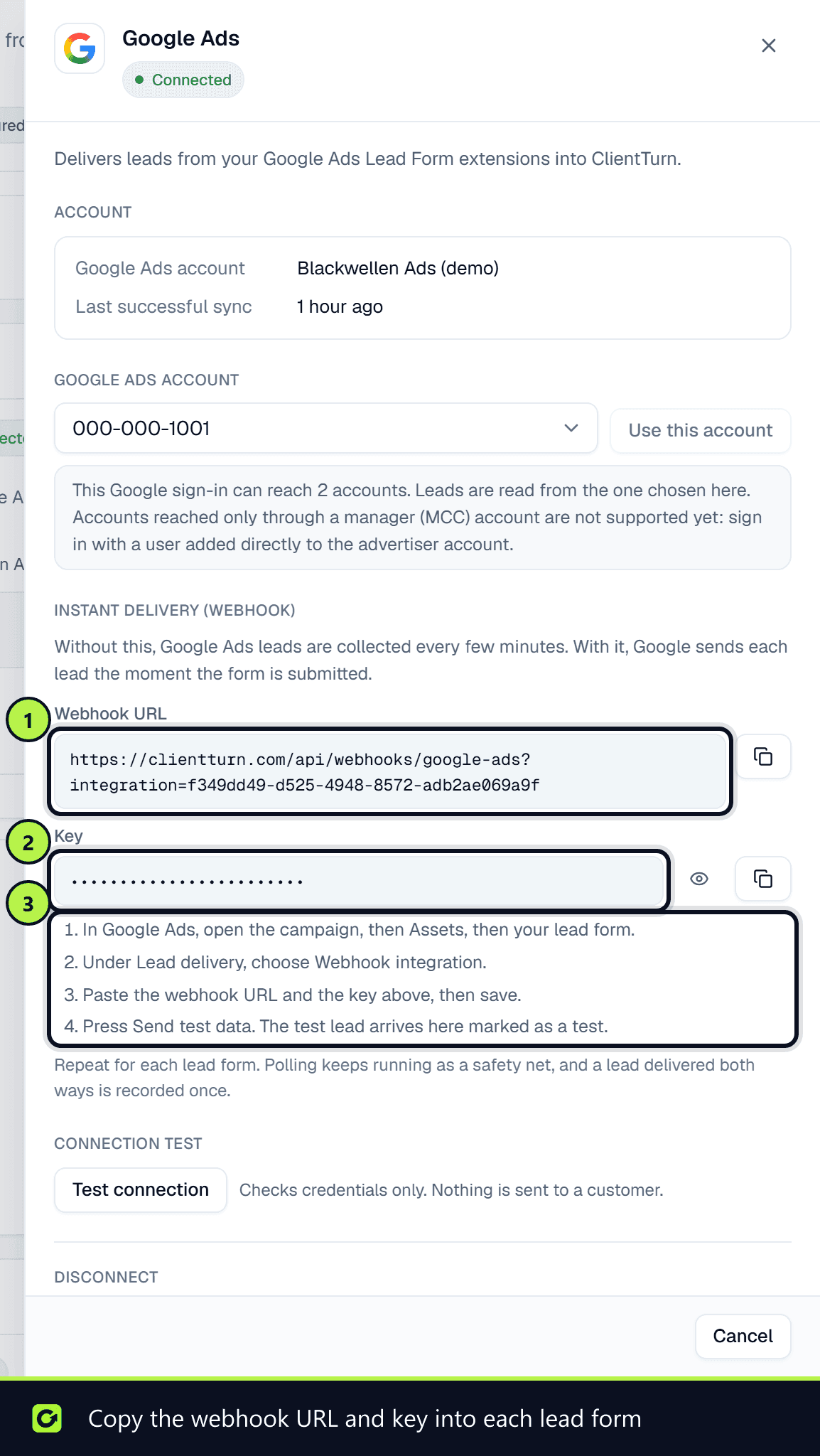
Google's lead-form webhook sends each submission to a web address, with a secret key Google calls google_key. ClientTurn creates a key for your workspace when you connect Google Ads.
- Step 1: In Settings → Connections, open the Google Ads card's Manage panel. Under Instant delivery (webhook), copy the Webhook URL and the Key. Only owners and admins can see the key.
- Step 2: In Google Ads, open the campaign, then Assets, then your lead form.
- Step 3: Under Lead delivery, choose Webhook integration, paste the webhook URL and the key, and save.
- Step 4: Press Send test data. The test lead arrives in ClientTurn marked as a test.
Repeat for each lead form. Polling keeps running as a safety net.
How the webhook behaves:
- A request with the wrong key is refused, and Google does not retry it.
- A request ClientTurn could not save because of a temporary problem is answered so that Google retries it.
- The lead itself is processed moments after the request is accepted, not inside it.
What happens to each lead
Each submission goes through the same intake checks as every other source (see Lead sources explained). The lead is recorded with Google Ads as its source, so source reporting tells it apart from other leads. The form, campaign and Google click ID (GCLID) are recorded for attribution, and speed-to-lead is measured from the time the person submitted the form. A new lead is qualified and enters your follow-up sequence.
If leads stop arriving
- A Reconnect required status on the card means Google refused ClientTurn's access, usually because it was revoked. Choose Reconnect.
- If the card shows an error message, it is Google's reason for the last failed check.
Related
Screenshots
Still stuck?
Customers can raise a ticket from the help button inside the app. Not a customer yet? Talk to us.