
Integrations
WhatsApp templates
Sync your approved WhatsApp templates and choose which one each WhatsApp follow-up step sends once the 24-hour window has closed
1 min readUpdated 26 September 2026
WhatsApp only lets a business send free-form messages within 24 hours of the person's last message. Outside that window, only a template WhatsApp has already approved may be sent. ClientTurn keeps a list of your approved templates and lets you choose one for each WhatsApp follow-up step.
Where to find it
Open Settings → Connections and scroll to WhatsApp templates. The panel appears once WhatsApp is on your plan. It lists the templates approved on ClientTurn's WhatsApp sender, or on your own WhatsApp Business Account once direct WhatsApp is connected.
Sync your templates
Templates are synced once a day. To fetch new or changed ones straight away, choose Sync (owners and admins). Each template shows its category: Marketing, Utility or Authentication. WhatsApp prices template messages by category, and so does ClientTurn: a utility template uses 2 WhatsApp tokens and a marketing template 5. A template whose category is unknown uses the marketing rate.
Choose a template for each step
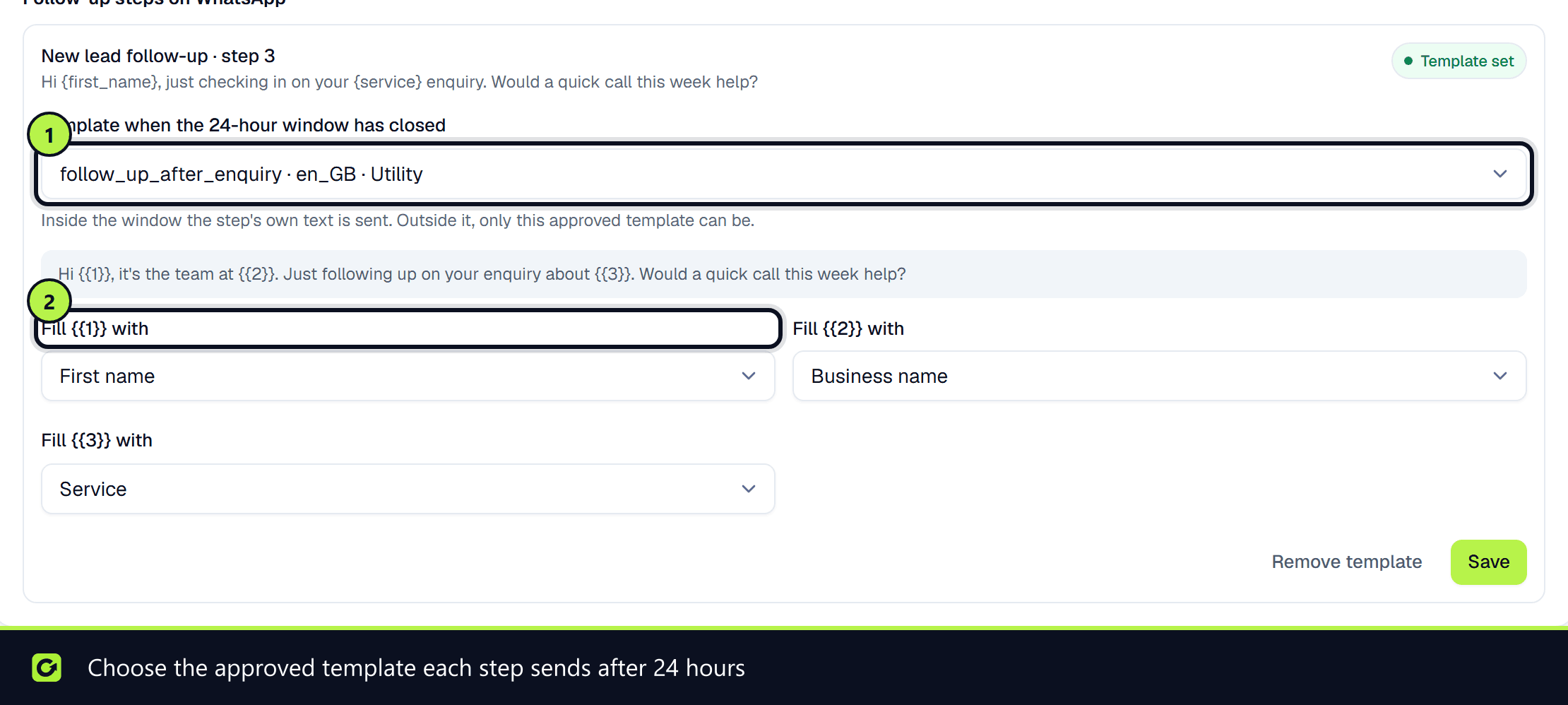
Under Follow-up steps on WhatsApp, each WhatsApp step in your follow-up sequence has a Template when the 24-hour window has closed setting.
- Step 1: Choose an approved template.
- Step 2: For each variable in the template, such as
{{1}}, choose which lead field fills it under Fill {{1}} with.
Inside the 24-hour window, the step's own text is sent. Outside it, only the chosen template can be.
What happens if there is no template
If a step has No template (the step is held for a person), or the template is not approved, or one of its variables has no value for that lead, the message is not sent. It is held for someone in your team to deal with. ClientTurn never falls back to sending free text outside the window.
Related
Screenshots
Still stuck?
Customers can raise a ticket from the help button inside the app. Not a customer yet? Talk to us.