
Finding leads
LinkedIn Sales Navigator, assisted
LinkedIn filters in your search plan, importing your own connections or list, what ClientTurn automates for LinkedIn outreach, and how InMail credits are tracked
7 min readUpdated 27 September 2026
ClientTurn does not send anything on LinkedIn for you. It prepares, paces and records; you press send inside your own LinkedIn account. This article explains the split.
Why it is assisted
LinkedIn's User Agreement prohibits bots that add contacts or send messages, and browser extensions that automate or scrape. LinkedIn's messaging and invitation APIs are open only to approved partners. An automated route would put your LinkedIn account at risk of restriction, so ClientTurn does not offer one.
Who does what
| ClientTurn does | You do |
|---|---|
| Orders your approved prospects by score, so the best ones use your limited daily invites | Open each profile from the queue and send the connection request in LinkedIn |
| Drafts the invitation note and the first message, checked for claims and pressure language | Copy the draft (or write your own) and send it |
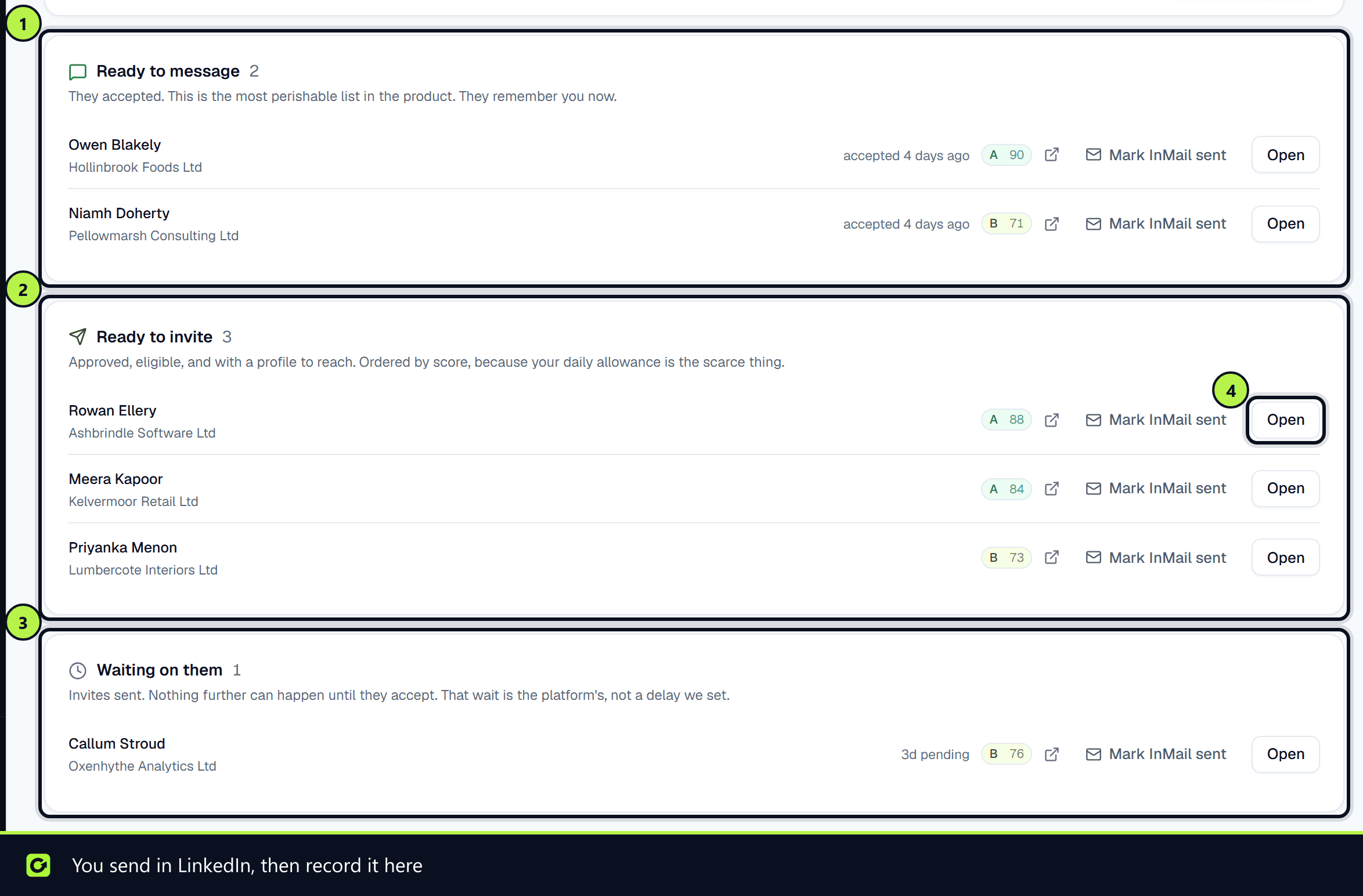
| Paces the queue inside your account's daily limits | Choose Mark as sent so the pacing and follow-up stay accurate |
| Tracks who accepted, and moves them to Ready to message | Record acceptances, replies, and InMails you send |
| Keeps the conversation history on the prospect or lead | Reply in LinkedIn; ClientTurn cannot read your LinkedIn inbox |
The queue lives in Find Leads → Social. It has three lists: Ready to message (they accepted), Ready to invite (approved prospects with a profile to reach) and Waiting on them (invites sent).
Allowances by account type
The subscription you choose on the sending account sets the limits ClientTurn paces against:
| Subscription | Invitation notes | InMail |
|---|---|---|
| LinkedIn Free | Personal notes on 3 invitations a month. Invitations without a note still go out | None |
| LinkedIn Premium | Unlimited | 15 a month, rolling over to 45 (a conservative figure; LinkedIn's varies by Premium plan) |
| LinkedIn Sales Navigator | Unlimited | 50 a month, rolling over to 150 |
| LinkedIn Recruiter | Unlimited | 150 a month, rolling over to 450 (check your contract's figure) |
If your workspace has more than one LinkedIn account, the InMail panel uses the best subscription among the active ones.
InMail credits
Premium, Sales Navigator and Recruiter give you a monthly allowance of InMail credits. ClientTurn cannot see your LinkedIn balance, so it works one out from what you record, using the allowance for your account type (see the table above). For Sales Navigator, LinkedIn's published rules are:
- 50 credits are added on the 1st of each month (UTC).
- Unused credits roll over, up to a balance of 150.
- A credit comes back when the InMail gets a reply within 90 days.
On a LinkedIn Free account the panel says the plan includes no InMail, and Mark InMail sent is refused.
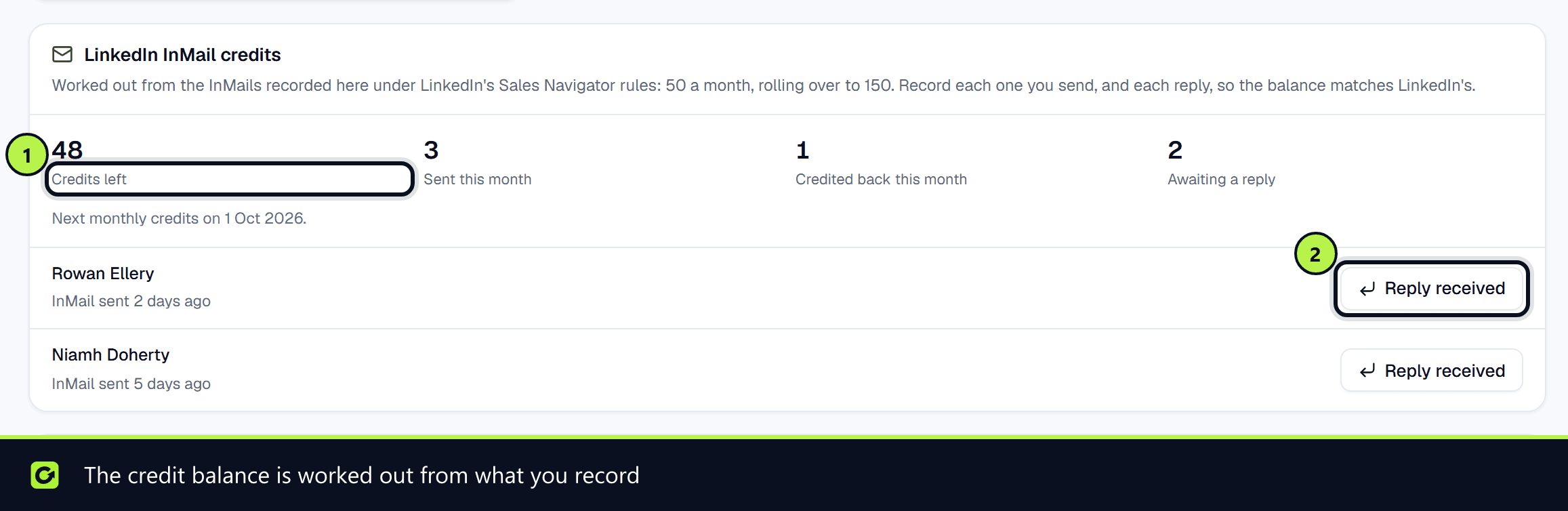
The LinkedIn InMail credits panel on the Social tab shows Credits left, Sent this month, Credited back this month and Awaiting a reply.
- Step 1: After sending an InMail in LinkedIn, choose Mark InMail sent on that person's row. It uses one credit.
- Step 2: When they reply, find them under awaiting replies and choose Reply received. If the reply is inside 90 days, the credit is returned.
LinkedIn filters in your search plan
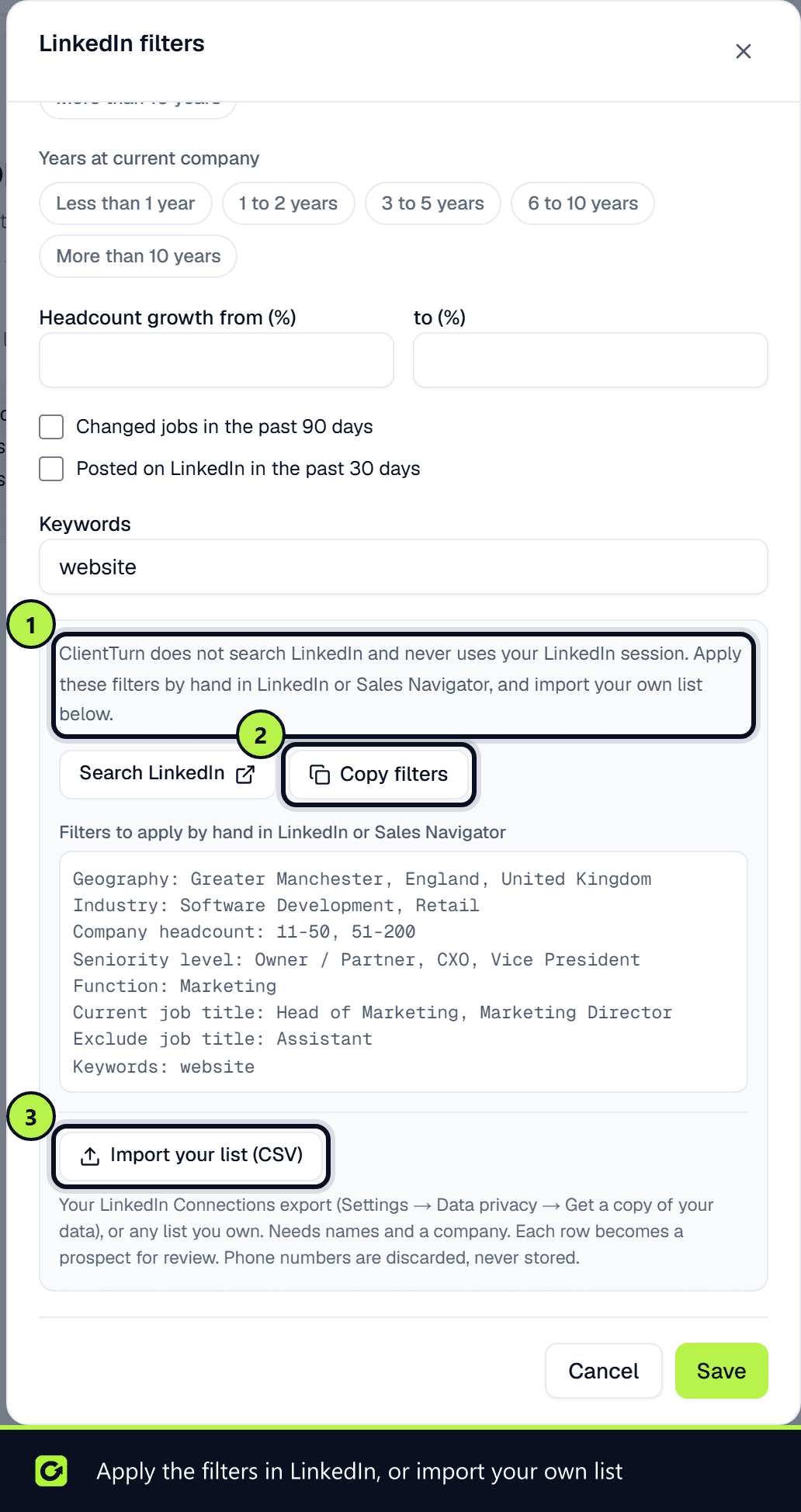
A search plan has a LinkedIn filters row. Open a search session in Find Leads → Discover and choose that row to note the lead and account filters you target:
- Geography and industry
- Company headcount (LinkedIn's bands, 1-10 to 10,001+), headcount growth and company type
- Seniority level (Owner / Partner, CXO, Vice President, Director, Experienced Manager, Entry Level Manager, Strategic, Senior, Entry Level, In Training)
- Function, current job title (include and exclude), years in current position and at current company
- Changed jobs in the past 90 days, posted on LinkedIn in the past 30 days, and keywords
All of them are optional. A plan without them searches exactly as before.
ClientTurn does not search LinkedIn. LinkedIn does not offer a search that ClientTurn may lawfully run, and ClientTurn never uses your LinkedIn session or reads LinkedIn pages. The filters are used in two ways:
- Step 1: Search LinkedIn opens LinkedIn's ordinary people search with keywords from your job titles and industries. Apply the rest of the filters by hand in LinkedIn or Sales Navigator. Copy filters copies the full list as text.
- Step 2: When you import your own list, the job-title and seniority filters decide which imported people a sourcing run picks up for its companies.
If no job titles are set, the plan's Decision maker roles are used.
Importing your own list
You can import two kinds of file, both your own data:
- Your LinkedIn connections. LinkedIn lets you download your own 1st-degree connections: Settings → Data privacy → Get a copy of your data, then choose Connections. The download includes a file called Connections.csv.
- Any list you own, such as an export from your CRM, an event attendee list or a spreadsheet.
Sales Navigator has no export of its own, and LinkedIn prohibits browser extensions that scrape it. Do not use one.
- Step 1: Open the LinkedIn filters row of a search plan and choose Import your list (CSV).
- Step 2: The file needs a first and last name (or a full name) and a company. A job title, LinkedIn profile URL, location, email and company website are used when present.
- Step 3: Every valid row becomes a prospect straight away. The result tells you how many were added, how many were already held, how many have no company website yet, and why any rows were skipped.
When the file has no company website
A website column is not needed. ClientTurn works out the company's website in this order and records which step found it:
- Step 1: A website or domain column in the file.
- Step 2: The domain of a work email in the row. A personal address such as Gmail or Outlook is never used.
- Step 3: The Companies House register, by exact company name, when your workspace has a Companies House key. The register does not publish websites, so a match confirms the company but does not supply one.
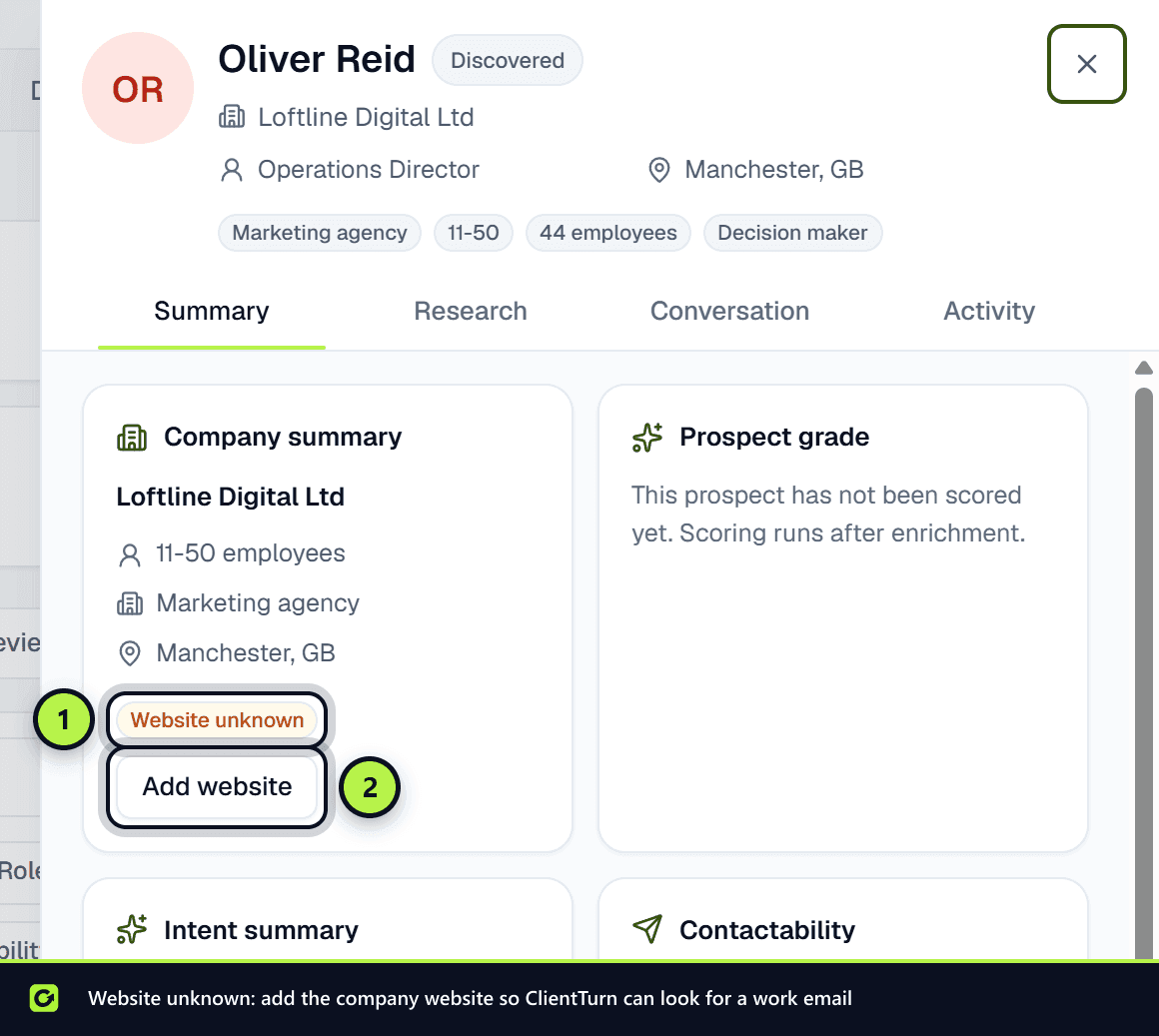
If none of these finds it, the prospect is still created and shows Website unknown. Open the prospect and choose Add website, enter the Company website, then choose Save and look for an email. ClientTurn then looks for a work email and checks the company's website and the register for buying signals.
What happens to the rows
- Phone numbers are discarded. A phone, mobile or telephone column is dropped and named in the result. ClientTurn contacts cold prospects by email only, so it does not store numbers from lists.
- An email address in your file is recorded as your own imported data and is verified before use, like any other.
- Every prospect starts in review. Its subscriber type (company, individual, partnership or unknown) comes from its email address and, where checked, the register.
- A 1st-degree connection is recorded as a connection. That is a relationship, but it is not consent to marketing. For a sole trader, partnership or personal address, ClientTurn allows one non-promotional opener, and anything more only after they reply. A row from any other list is recorded as imported, which needs consent for individuals. See LinkedIn and social messages.
- Importing the same file again adds nothing new. People are matched first by LinkedIn profile URL, then by name at the same company, then by email.
Files over 1 MB need splitting.
Rules that always apply
- Someone who declined your invite is not offered again. Repeated requests are what get accounts restricted.
- Messages to sole traders and individuals follow PECR's consent rules, because social messages count as electronic mail. See LinkedIn and social messages.
- Suppression and opt-outs apply to LinkedIn exactly as to email.
Related
- LinkedIn Assist: your daily LinkedIn list in Follow-Up, with messages written for you
- LinkedIn Lead Gen Forms
- LinkedIn company-page engagement
Screenshots
Still stuck?
Customers can raise a ticket from the help button inside the app. Not a customer yet? Talk to us.